
Demand Forecasting List
The demand forecasting list now has an [Export to Excel] button and a copy icon for item codes and names.
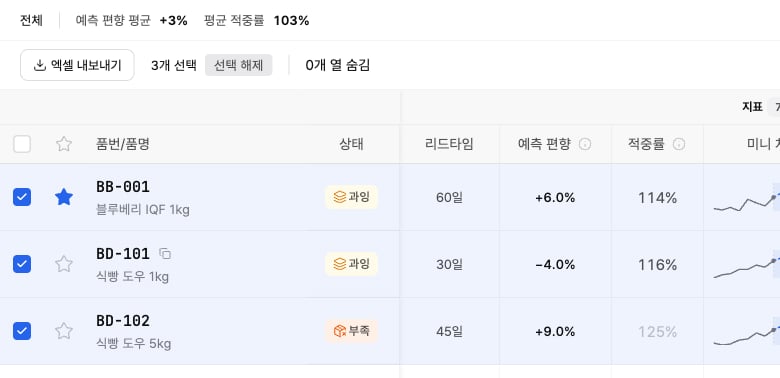
- Export to Excel: Click [Export to Excel] in the toolbar above the table to open a confirmation dialog, check the scope, content, and file name, and download an Excel file. If you have selected items, only those are exported; if not, the whole list with the current filters and search is exported. Previously, you could only download a CSV after selecting items.
- Copy item code / name: Hover over an item code or name to show a copy icon, and click it to copy the text to the clipboard. Clicking the row opens the detail screen, so use this icon when you only want to copy the text.
Commodity Price Forecast
The Commodity Price Forecast menu has been renewed.
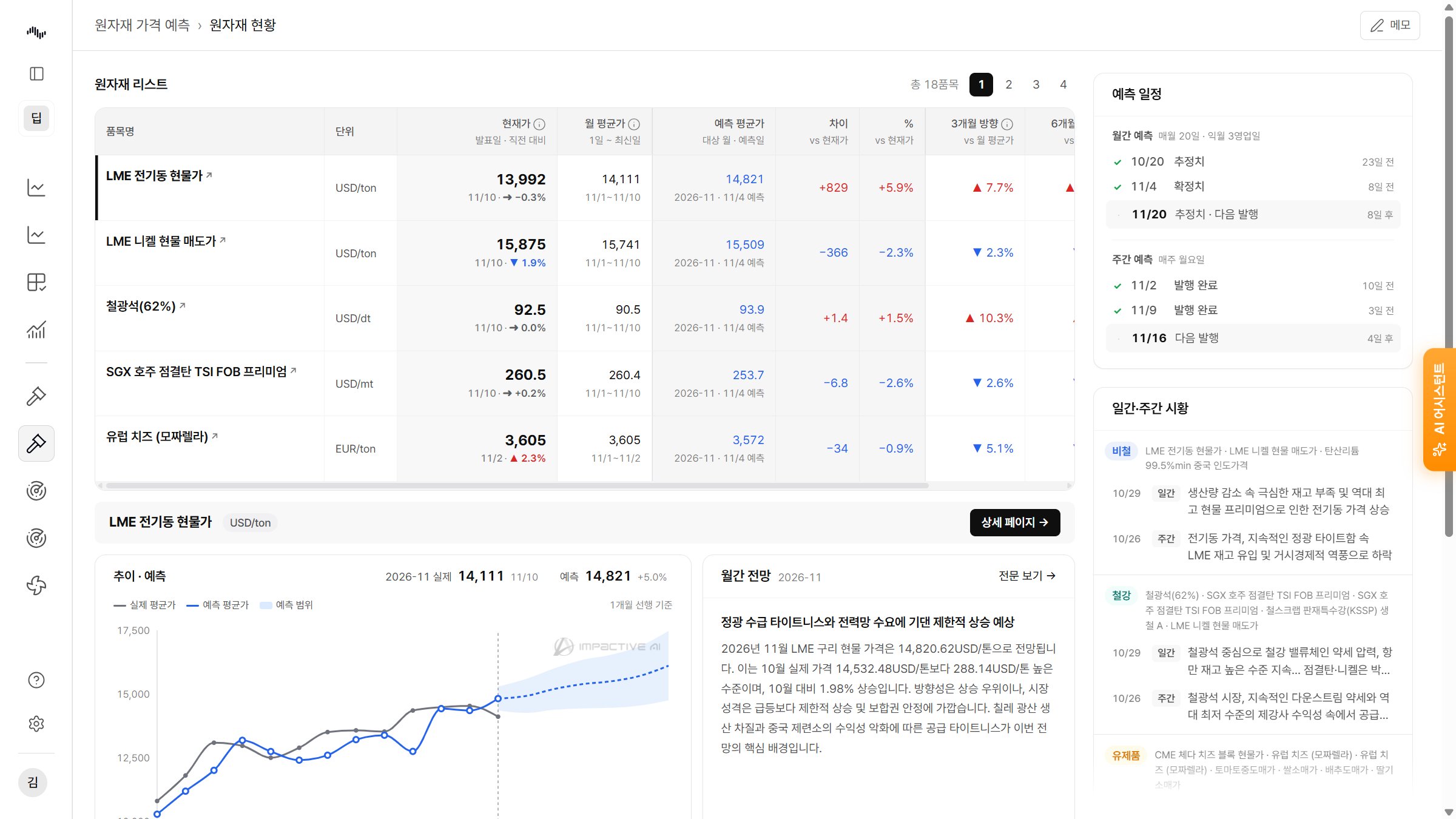
The menu has been rebuilt so you can check the prices and AI forecasts of your subscribed commodities on a single Commodities screen. Select an item to move between five tabs, Price Forecast, Monthly Outlook, Market Overview, Causal Analysis, and Technical Analysis, and review the forecast and its basis.
- Commodities: See the last price, current month average, forecast average and their gap, the next 3M and 6M direction, and the one-year trend in one table. Items whose price moved in the same direction 3 or more times in a row get an up or down chip. Select a row, and the trend and forecast chart, monthly outlook summary, and watchlist below switch to that item.
- Forecast schedule and market overviews: Check which release the forecast you are viewing comes from and when the next forecast is due in the forecast schedule. Read the daily and weekly market overviews related to your subscribed items on the same screen.
- Price Forecast: See monthly, weekly, and quarterly forecasts in a summary table, and check the previous month’s accuracy and market volatility in the target month cell. [Compare with previous release] adds one more row with the previous release’s forecast for the same month, and forecast performance can be downloaded as CSV.
- Three forecast chart modes: Use the current-month forecast, the forecast from 3 months ago, and comparison by release to see how closely past forecasts matched actual prices and how the forecast changed from release to release.
- Monthly Outlook: Read, on the item screen, an analysis that diagnoses last month’s market by factor and lays out the price outlook and the conditions for a rise or fall in the target month. Find past outlooks by publication date, item, and keyword.
- Causal Analysis: Check how much supply, demand, economy, inventory, and financial factors affected past prices, and with how many months of lag. Click ★ in the detailed factors table to add that indicator to the watchlist on the Commodities screen.
- Technical Analysis: Combine four indicators, Direction, Volatility, Trend strength, and Trend persistence, to classify the current price trend into five levels from down to up. Updated every business day.
Market Intelligence
The Market Intelligence menu has been renewed.
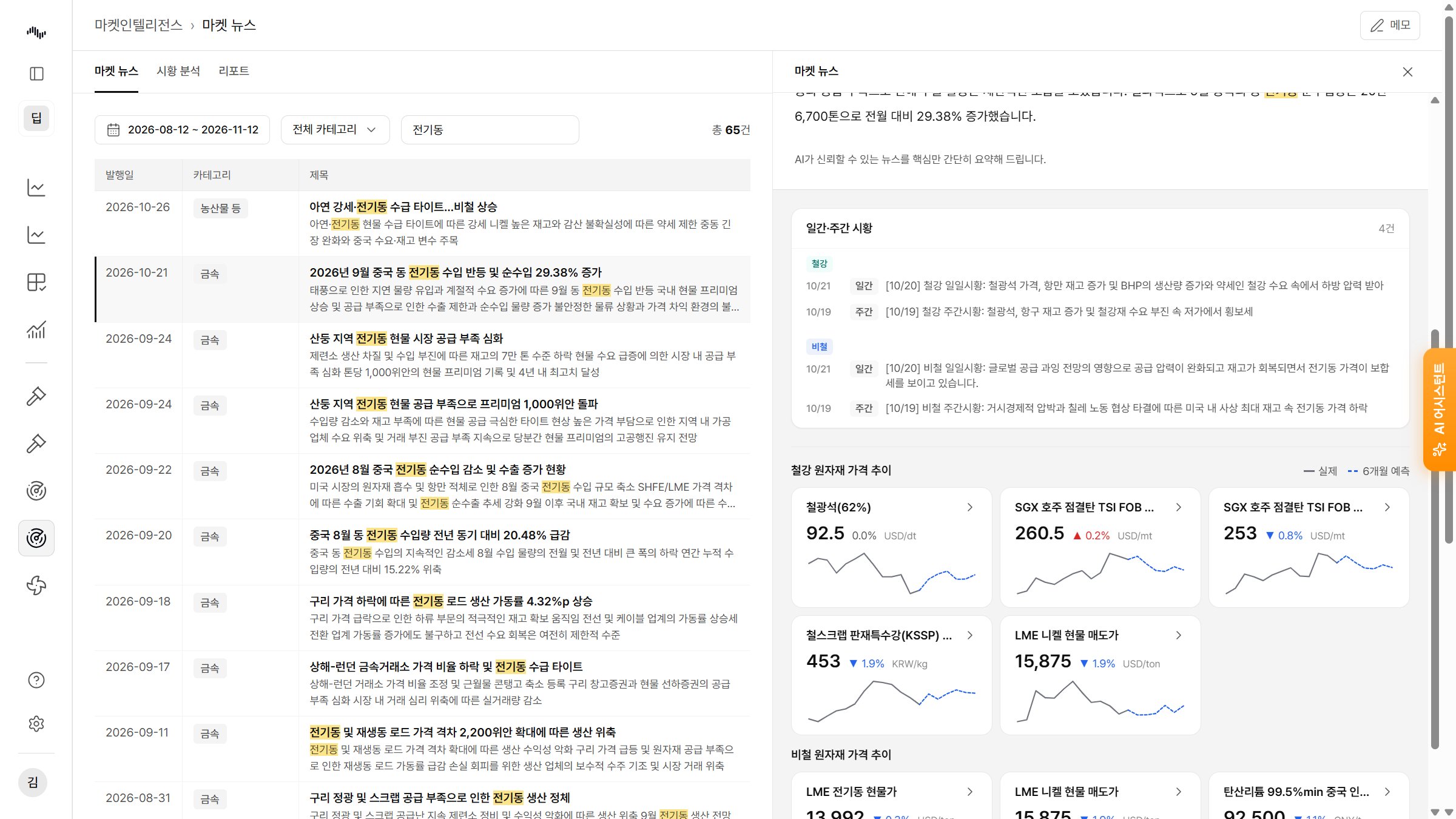
Commodity news from Korea and around the world, daily and weekly market overviews, and IM AI Brief reports are now gathered in three tabs: Market News, Market Overview, and IM AI Brief. Click a title to open a reader panel on the right, and keep going below the body to the related market overviews and commodity prices.
- Market News: Find articles by period, category, and keyword. Enter several keywords to find every article that contains at least one of them, with articles that contain more of them shown first. Each article comes with a three-sentence key summary.
- Related information below the article: Each article shows the daily and weekly market overviews from the time it was published, plus price cards (the past year of actual prices and a 6-month forecast) for the related commodities you subscribe to. Click a card to go to that item’s Price Forecast tab.
- Market Overview: Find daily and weekly market overviews by category, such as steel and non-ferrous metals, using period, category, cycle, and keyword. Daily overviews are published every day, and weekly overviews every Monday.
- Check the source articles: Related news below a market overview groups, by commodity, the articles each paragraph is based on. Open them in the same panel to see which articles the overview’s conclusions came from.
- IM AI Brief: Browse in-depth commodity analysis reports published by Impactive AI as cards. Open one in place of the list to move between pages, zoom, print, and download.
Notes
Leave your own notes on posts you want to revisit while reading news, market overviews, and IM AI Brief reports.
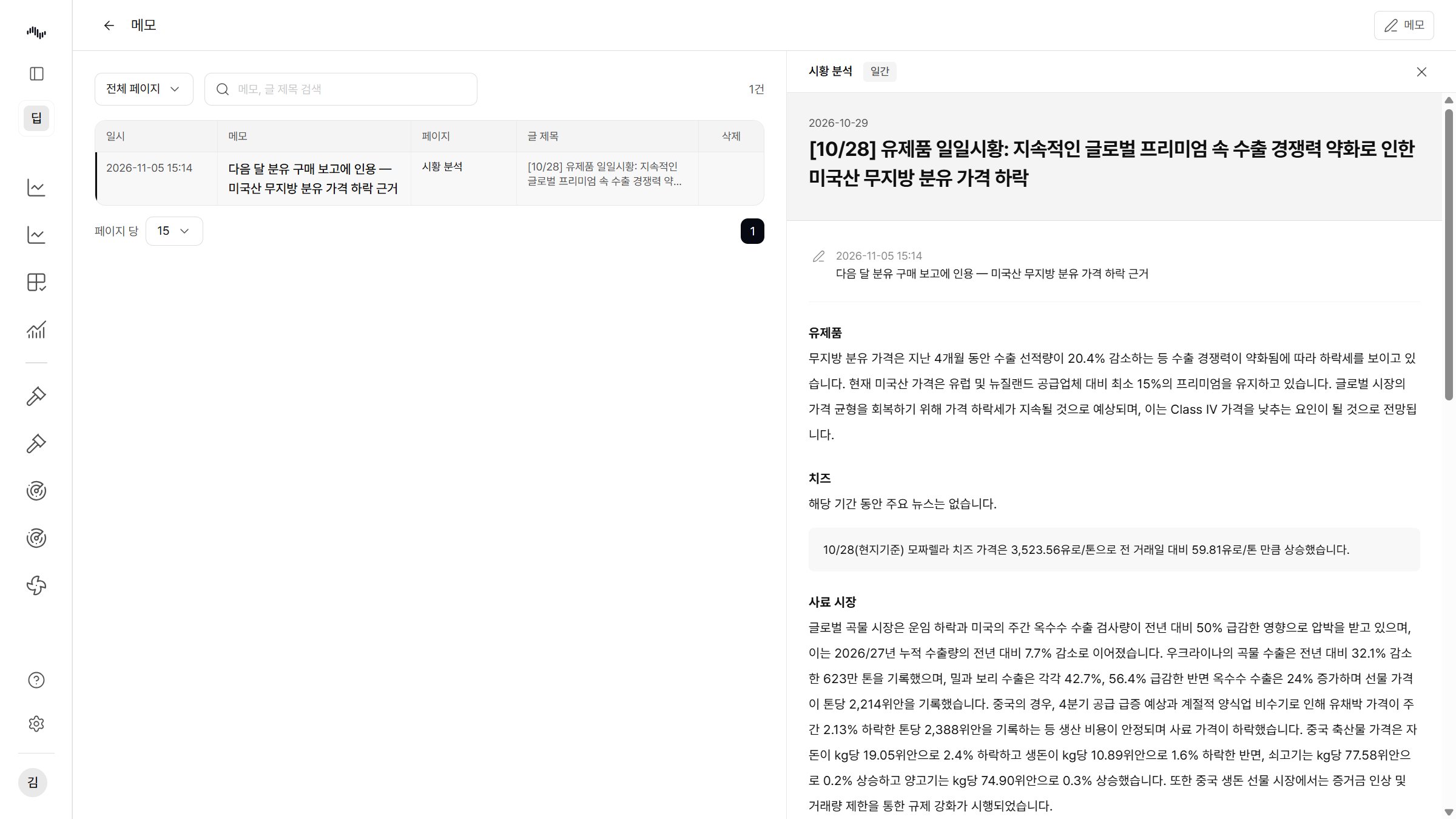
Leave a note below the title of anything you read in Commodity Price Forecast and Market Intelligence, and see all your notes in one place on the Notes screen at the top right. Use it to find the posts you want to cite before a report or a purchasing decision.
- Leave a note: Write up to 1,000 characters in the note area below the title of a monthly outlook, market news article, market overview, or IM AI Brief report, and save with [↑]. Notes aren’t saved automatically, so be sure to save. Web addresses are saved as links.
- The same note in both menus: News and market overviews appear in both menus, so a note left in either menu shows up whenever you open the same post. Posts with a note show a note icon in the list.
- Notes screen: See your notes newest first, and find them by page type or by note text and post title. Click a row to open the original post right away in the reader panel on the right.
- Private notes: Only you can see your notes. Leave one note per post, and hover over it to edit or delete it.
Demand Forecast AI Assistant
Ask questions to check actuals, forecasts, and inventory on the demand forecast screen, and change values after your approval.
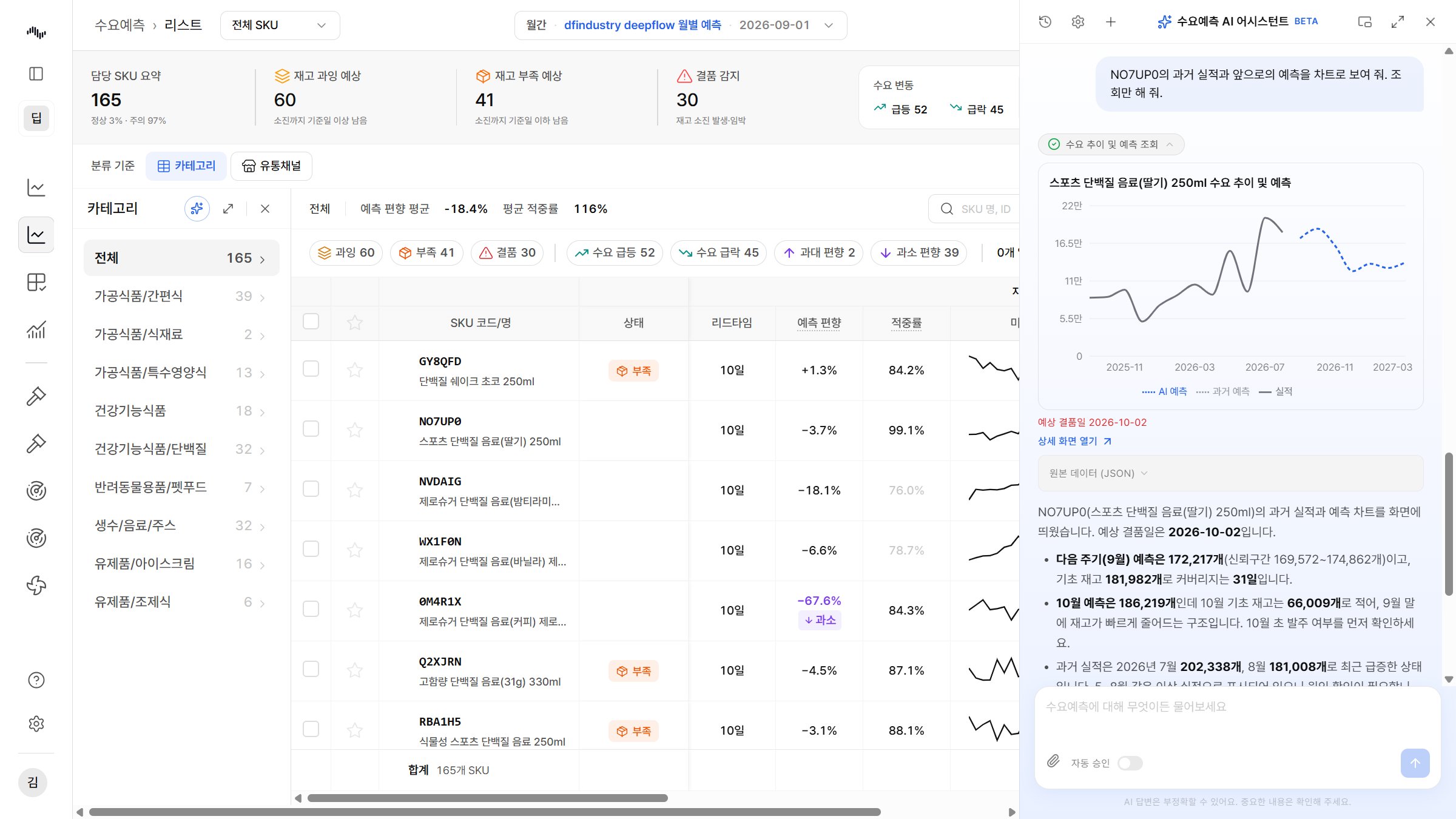
Ask the AI assistant on the right side of the demand forecast list and detail screens in plain language, and it organizes sales actuals, forecasts, and inventory into tables and charts. Tasks that change data, such as updating lead times or stock thresholds or registering S&OP agenda items, can also be handled in the conversation through an approval card. Choose between a small window, a side panel, or full screen for the chat.
- Suggested questions for each screen: On the list screen, ask right away about inventory issues to check first, SKUs to watch, category comparison, and analysis by sales channel; on the detail screen, ask about the item’s forecast summary, accuracy, order timing, and response scenarios. You can also start a question from the AI icon on summary cards, categories, and the detail screen.
- Answers based on the screen you are viewing: The forecast model, cycle, and base date at the time you ask, plus the item open on the detail screen, are used as the basis. On the detail screen, simply ask about “this item”.
- Tables, charts, and downloads: Sort answer tables by clicking a column header and download them as CSV. See actuals, the AI forecast, past forecasts, and the S&OP plan in one chart, and click an item link in a table to go to its detail screen.
- Analysis by asking: Query sales by sales channel and category, forecast accuracy, forecast comparison across runs, abnormal actuals history, the event calendar, response scenarios, and dataset status by asking. Turn on the web search skill to find external information such as market trends and news, with sources.
- Data changes after approval: Change lead times, stock thresholds, favorites, and abnormal actuals review results, or register S&OP agenda items. Check the target and values on the approval card before running, and when changing many items at once, check the number of targets with a preview first. With auto-approve on, changes run immediately without an approval card.
- AI change history: Changes made through the AI assistant are recorded in AI change history in settings, with who ran them, when, and the values before and after.
- Make it yours: Write the items you care about and how you want answers in User Context, and it applies from the next conversation. Turn each skill on or off, and attach up to 3 images, such as screen captures, at a time.
Raw Material AI Assistant
Gather raw material prices, forecasts, news, and market reports with a single question, and see why prices moved along with supporting news.
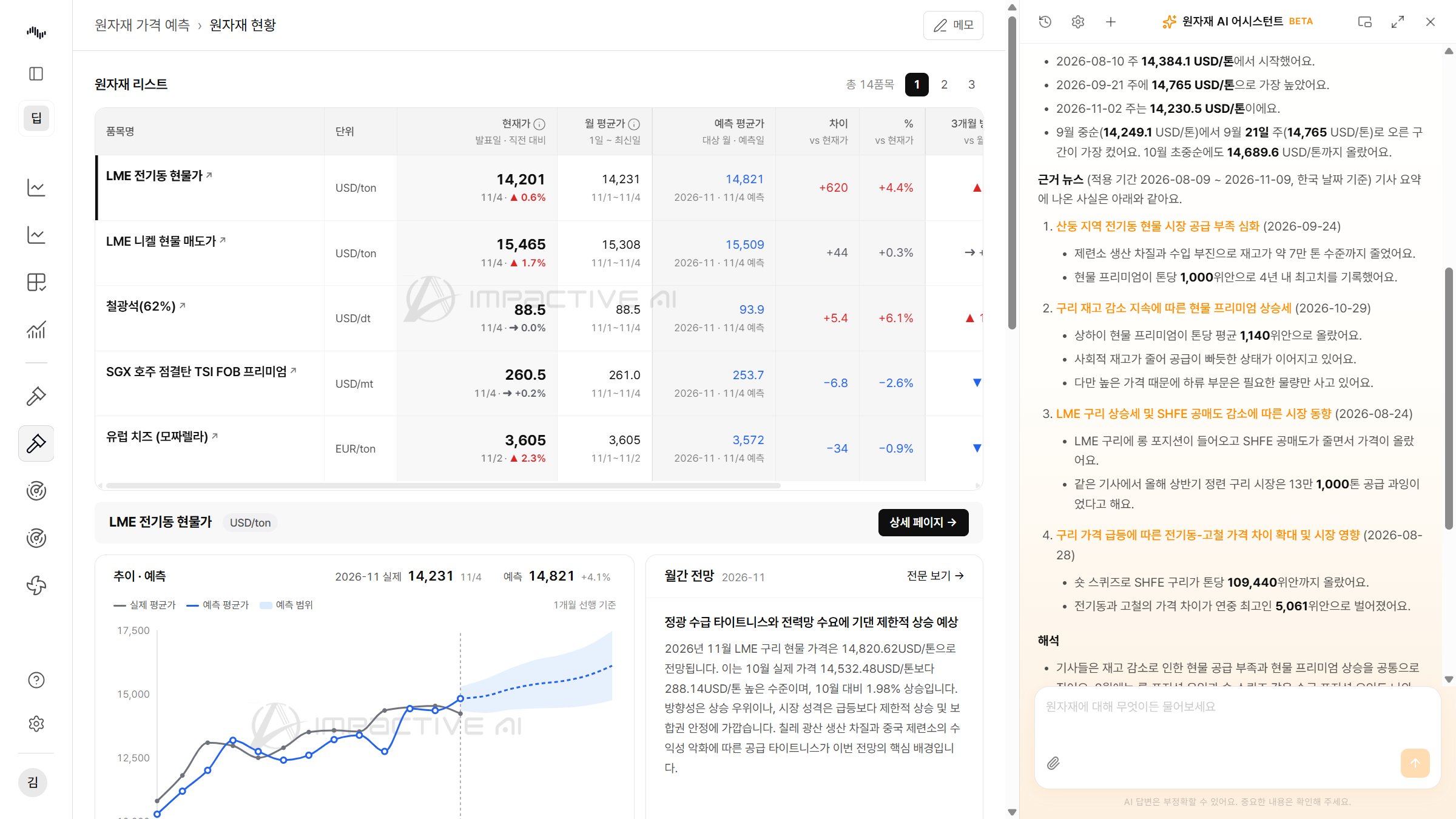
Ask the AI assistant on the right side of the raw material price forecasting and market intelligence screens, and it gathers prices, forecasts, news, and market reports scattered across screens into tables and charts. It explains why a price moved with the publication date and original link of the supporting news, so you can prepare evidence for internal reports or purchasing decisions right away.
- Ask from any screen: Open it from every sub-screen of raw material price forecasting and market intelligence. On an item detail screen, simply ask about “this item”.
- Drag a sentence to ask: When you drag a hard-to-follow sentence while reading a market report, news article, or monthly outlook, a question menu appears. Choose a question, and the AI assistant opens and sends it right away.
- Supporting news with original links: Answers based on news and market reports show the publication date and the original link, so you can check where an answer came from yourself.
- Prices and forecasts in one chart: Draw actual prices and forecasts in one chart, and sort tables or download them as CSV. Forecasts are provided only for subscribed items.
- Suggested questions: Ask right away about items whose prices moved sharply over the last 3 months, economic indicators to watch based on recent news, and what pushed the KRW/USD exchange rate up or down last month.
- Make it yours: Write your items and business perspective in User Context, and it applies from the next conversation. The raw material and demand forecast AI assistants keep conversation history and User Context separately.
Permissions
Set roles and per-service permissions for each member, and build departments to assign owned items.
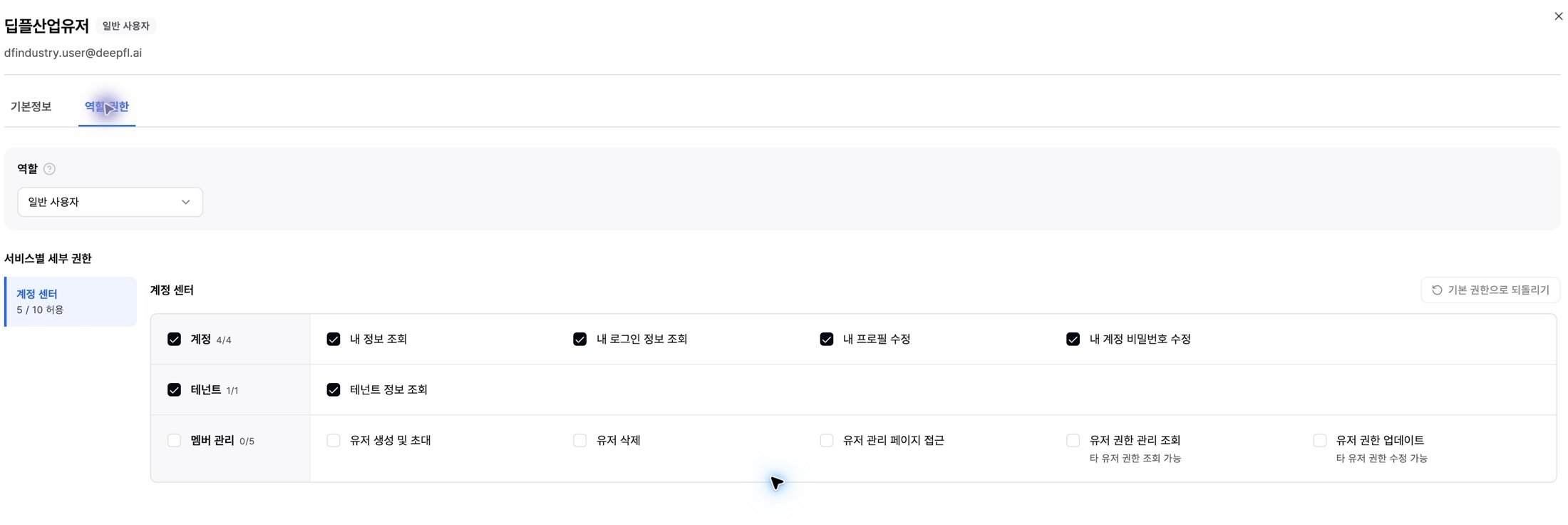
Open Member management from the profile button at the bottom left of the screen to invite the members who will use Deepflow with you and decide which features each member can use. In Department management, build your organization hierarchy and assign owned items to departments and individuals. The admin menu is visible only to primary admins and operations admins who have been granted access.
- Invite members: Invite members by email and name, and set their role and the services they can use at the same time. Members who have not signed up yet appear on the Invited tab, where you can cancel the invitation.
- Three roles: A primary admin has full admin permissions, and at least one is required. An operations admin has admin permissions except deleting members, and a general user uses the basic features.
- Per-service permissions: For each service, allow or block view, create, edit, and delete at the feature level. Changing these permissions keeps the role name, and [Reset to default permissions] returns to the role’s defaults.
- Department management: Create sub-departments under your company and change their name, parent department, and active status. Assign members to a department or move several members to another department at once.
- Owned items and coverage: Assign owned items to departments and individuals. A parent department’s owned items carry down to its sub-departments, and member details show the final coverage that combines personal, department, and parent department assignments. Assigning owned items does not grant view or edit permissions on its own.
- Same information as Item Management: Personal owned items assigned in Department management are the same information as the owner in Item Management. In Unassigned, find members without a department and items without an owning department, and assign them.
Demand Forecasting on Mobile
You can now check demand forecasting on mobile.
Item Management
The Item Management menu has been renewed.
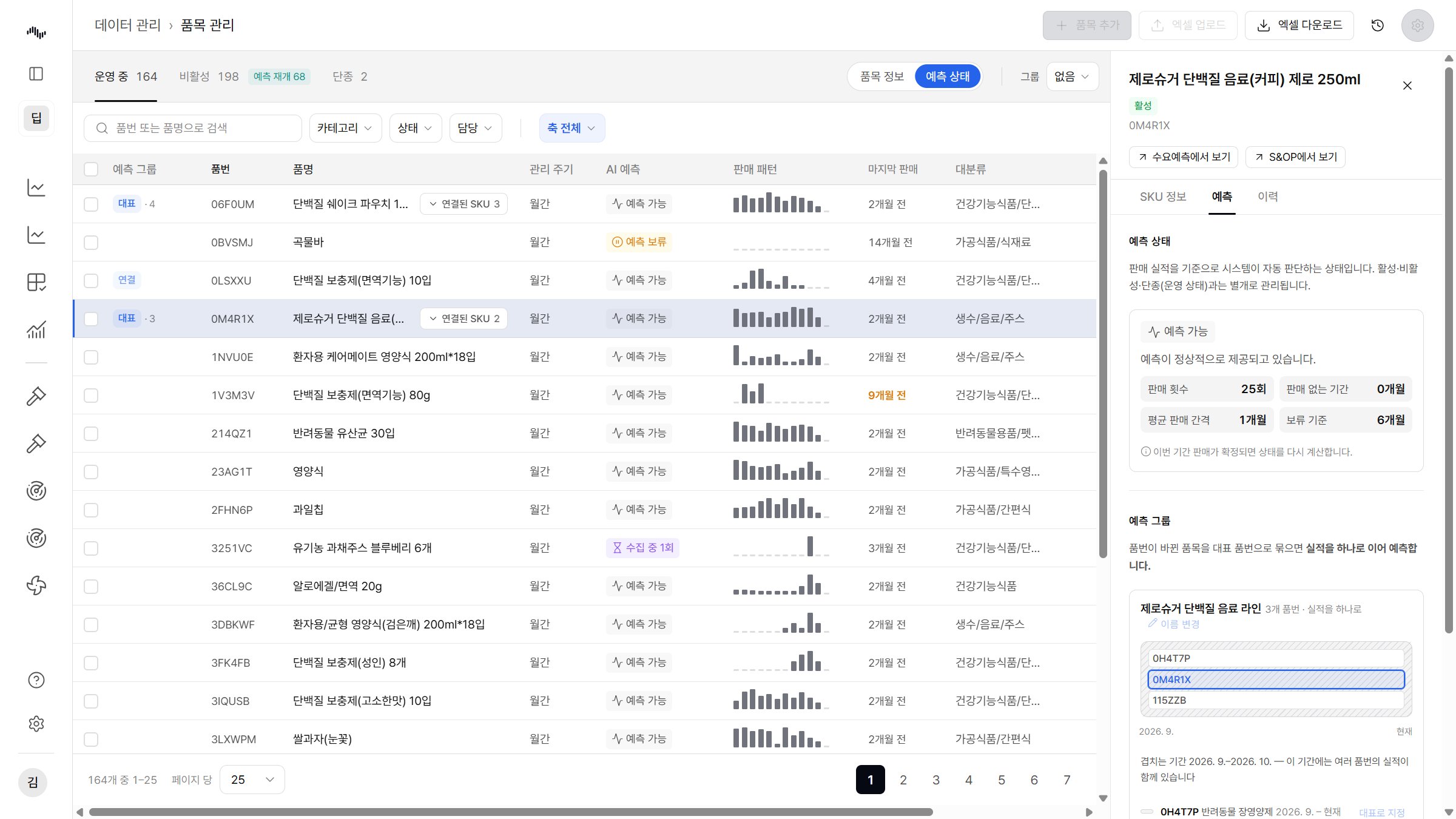
Item Management has been rebuilt so you can manage, on one screen, the item information that every Deepflow feature, including demand forecasting and S&OP, references. Review items with the operating status tabs and the forecast status view, change values with cell edits, bulk actions, and Excel upload, and compare what changed before and after big edits with History.
- Operating status tabs: View items split into Active, Inactive, and Discontinued tabs. Items that still record sales after being discontinued are counted separately as Sold after discontinuation.
- Forecast status view: See the forecast status the system determines from sales history (Collecting data, Forecastable, Forecast on hold, Excluded from forecast) in one table, together with sales pattern, forecast group, and last sale. Forecasting starts once 3 sales records accumulate, and items put on hold after a long gap in sales resume automatically from the next forecast once they sell again.
- Cell edits and bulk actions: Double-click a cell to edit lead time, MOQ, unit, price, owner, or category right away. Check several items to change status, category, owner, or attributes at once, or to create a forecast group.
- Case panel: Click an item name to open the SKU info, Forecast, and History tabs on the right. Check the stock thresholds applied to the item and where they come from, the basis for its forecast status, and its change history here.
- Excel upload validation: After you upload the template file and map columns to attributes, the result is shown first, split into Column errors, Cell errors, Duplicate item codes, and Valid data, and only the rows without errors are applied. You can edit a file from Excel download and upload it again as is.
- Settings (admins): Manage the columns shown in the table and custom attributes, category levels (1 to 4), classification axes such as sales channel and country, and stock thresholds. Stock thresholds follow the closest value in the order item, sub-category, mid-category, top category, default.
- History: The full item information is saved at every forecast run and right before Excel applies and ERP syncs, and admins can also save it whenever they want. Compare a saved point with now to see only the items that changed.
- ERP-linked customers: Items come in automatically from the ERP. Values edited on screen change only within Deepflow, and [Revert to ERP value] makes them follow the ERP value again. Register a new product that is not yet in the ERP first, and it links automatically when the same item code arrives from the ERP.
S&OP
The S&OP demand planning menu has been renewed.
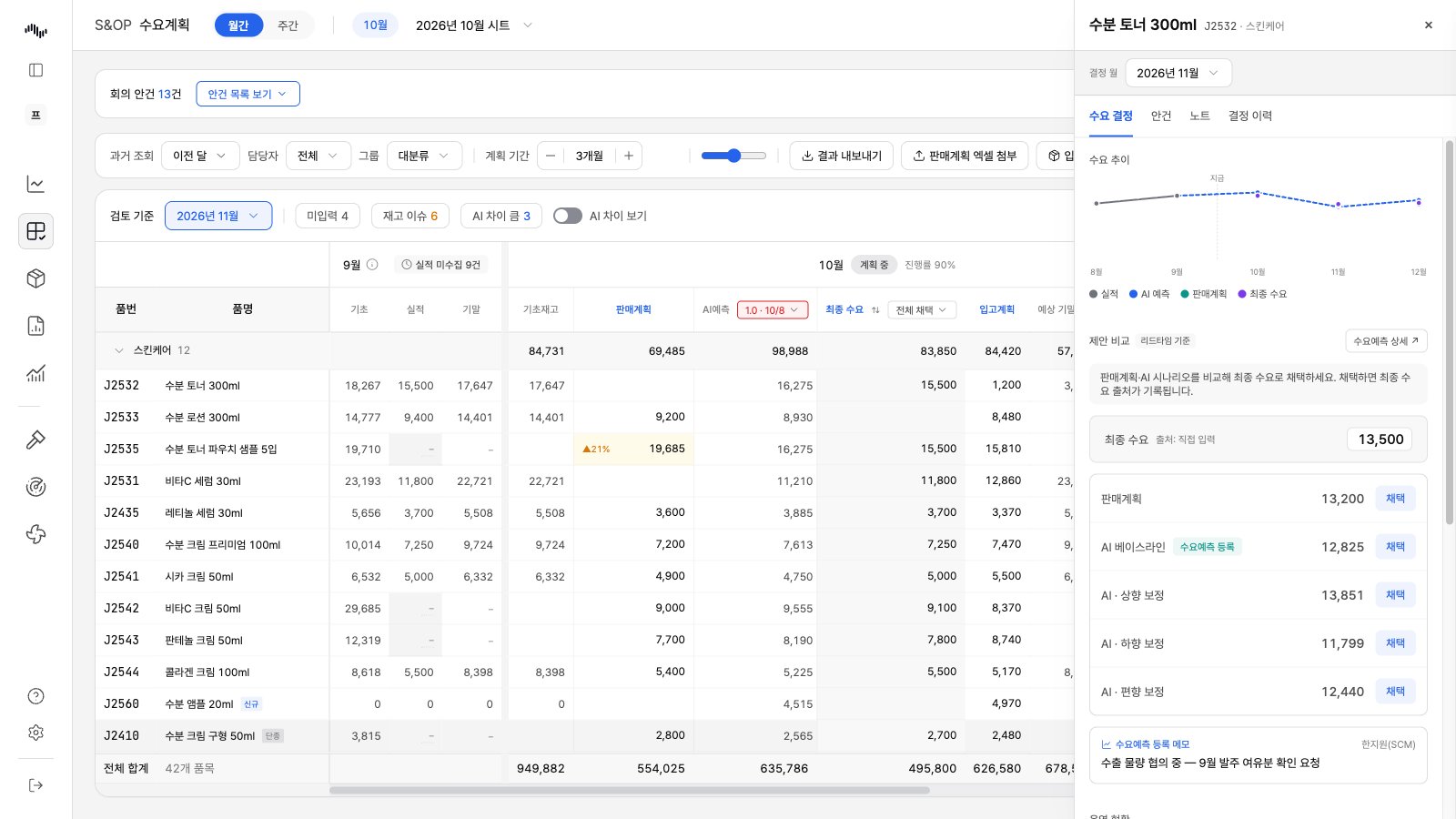
The S&OP demand planning menu has been rebuilt as an Excel-style supply–demand sheet that is easy to use in day-to-day operations. Compare the team’s sales plan, the AI forecast, and the inventory flow (beginning inventory → goods receipt plan → projected ending inventory → days of supply and status) in one table, and decide the final demand per item in the case panel.
- Sheet-based management: Create multiple monthly and weekly sheets and move between them. Create a sheet by setting the base month (week) and the number of planning periods, with support for renaming, sheet notes, and sheet management (deletion). Inputs are auto-saved cell by cell. There is no separate confirm or lock feature; only periods already in the past are locked automatically by date, and past periods remain exactly as planned at the time.
- Review basis and quick filters: Set the period to focus on in this meeting as the review basis, and the counts of Not entered · Inventory issue · Large AI gap (items diverging from the AI forecast by more than ±50%) and the progress are calculated against it. Combine it with owner, group, and search to shortlist the items that need attention right away.
- Case panel: Click an item name or the open icon in a period block to open the item detail. Review the demand trend, proposal comparison (sales plan + four AI scenarios), operations status, and forecast reliability, and set the decision month’s final demand with a single Adopt. Change the period the panel views (decision month · decision week) in the bar at the top of the panel.
- Agenda · notes · decision history: Items registered to S&OP from demand forecasting and items raised directly by owners gather as meeting agenda items, each completed or withdrawn individually. Notes and decision history accumulate per item, and every record keeps its sheet and period, so you can trace why a decision was made in a past round.
- Demand forecasting → Register to S&OP: Send the scenario chosen in Response scenarios on the demand forecasting detail screen (monthly) straight to a sheet’s meeting agenda with the Register to S&OP button. In the registration modal, choose a monthly sheet that includes the target month and, if needed, leave an agenda memo. If a proposal already exists for the same month, it is updated with the new value. In the S&OP case panel, the registered scenario row shows a “Registered from forecast” tag and the memo.
- Excel attach · Export results: Upload the sales plan and the goods receipt plan using header-only templates. Review the per-cell validation result (column errors · cell errors · duplicate item codes · valid data) before applying, and apply everything except the errors. Download the meeting results as xlsx from Export results after checking the scope and content.
- AI forecast point management: Choose the forecast model and forecast point per period. When a newer forecast is available, the update icon in the header turns blue, and one click sets every period to the latest. Periods whose ERP actuals have not yet arrived are marked separately as “actuals not collected” and inventory calculation stops there.
- Data basis: The item list always follows the latest state of Item Management, and past actuals show the latest ERP values. A sheet stores only plan values (sales plan · final demand · goods receipt plan) and records. To keep the table exactly as seen in the meeting, download it with Export results.
Demand Forecasting
The Demand Forecasting menu has been renewed.
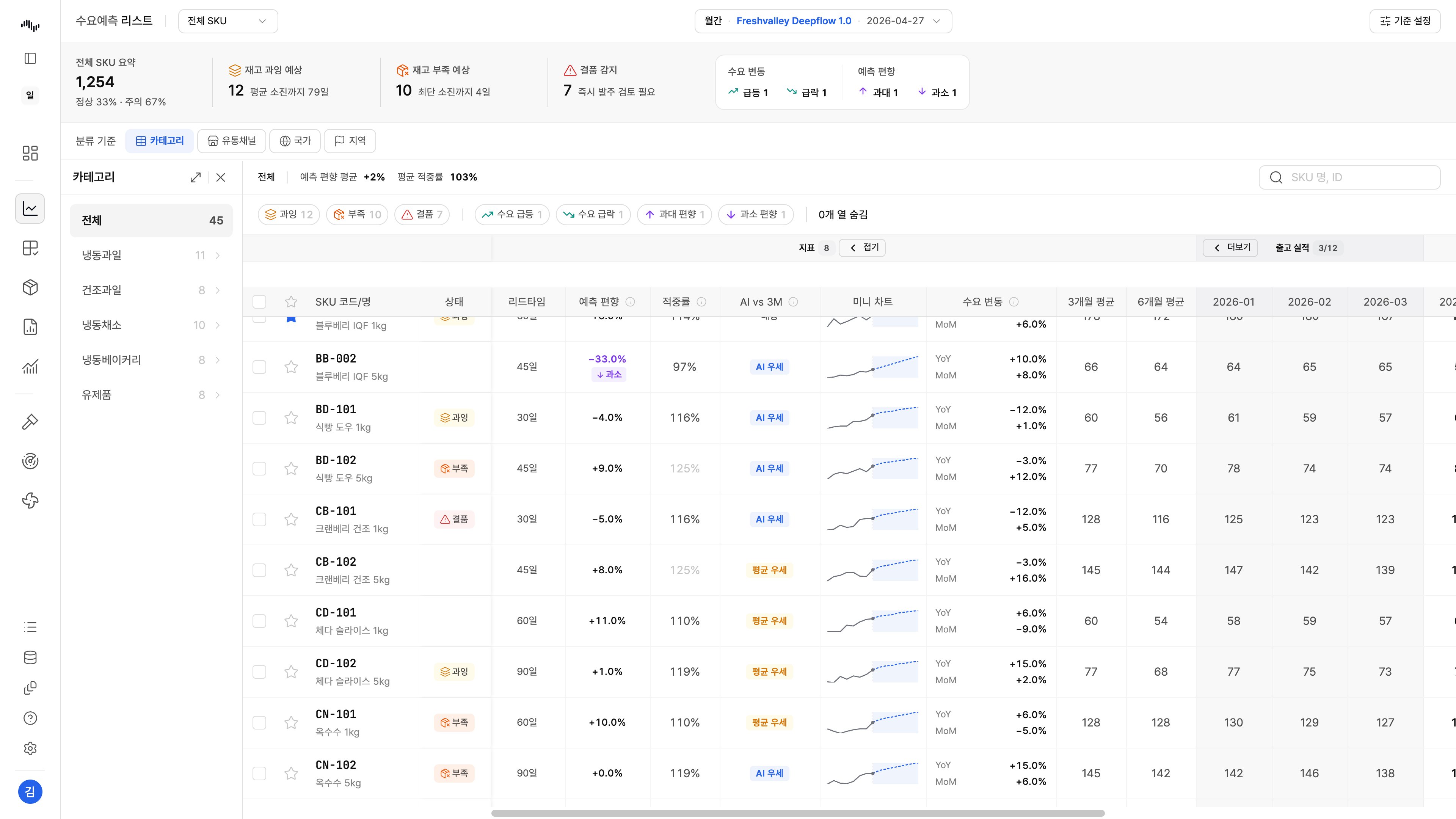
The Demand Forecasting menu has been fully redesigned around a list–detail two-screen structure. On the list screen, check the inventory and demand status of your assigned SKUs at a glance and shortlist the items that need attention; on the detail screen, complete everything from forecast rationale analysis to adjustment and order-quantity decisions in one place.
- Prioritize with status signals: Overstock, understock, and out of stock states plus demand surge/drop and over/under-forecast bias signals are provided as summary cards and filter chips, so you can immediately shortlist the SKUs that need action now.
- Assigned-SKU-centric views: “My SKUs” assigned in Item Management is the default scope, and you can switch views across product category, distribution channel, country, and region axes.
- Forecast cycle, model, and point-in-time selection: Choose monthly, weekly, or daily cycles and a forecast model, and go back to past forecast points to compare the forecasts of that time against actuals.
- Response scenarios: Compare five demand assumptions — AI suggestion, average, upward/downward correction, and manual — in a result matrix (projected ending inventory, days of supply, risk), and adopt the scenario you want as the plan value.
- Forecast reliability indicators: Judge whether to trust the AI forecast and decide the adjustment direction with reference indicators such as hit rate, forecast bias, and the AI vs 3M (MASE) verdict.
- Analysis & Diagnosis tab: Generate AI analyses across four subtabs — shipment patterns, market trends, risks & opportunities, and forecast bias — for deeper insights.
Item Management
A renewed Item Management menu lets you manage forecast-target items and set their status, attributes, owners, and forecast groups all in one place.
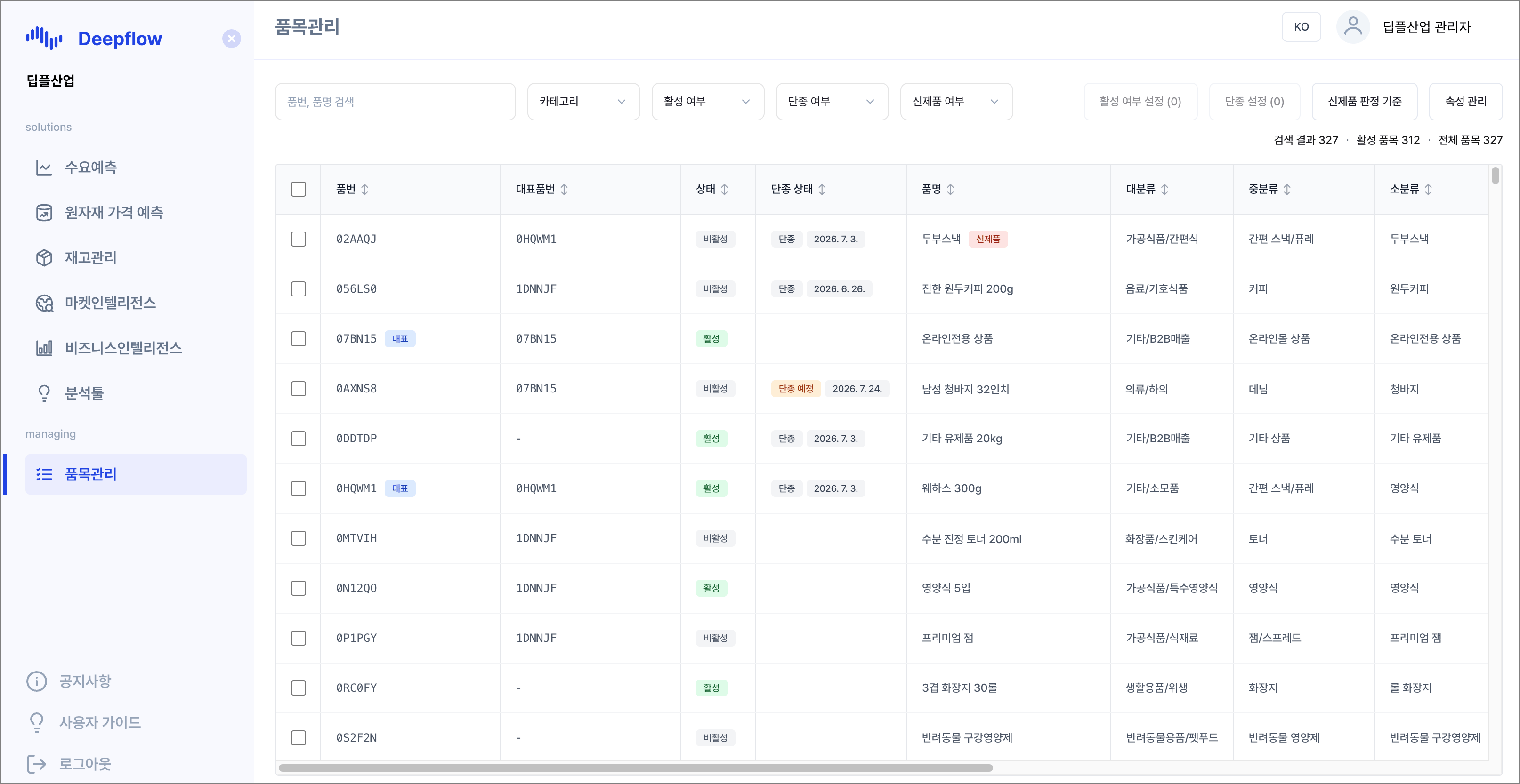
In the Item Management menu you can directly manage the items targeted for demand forecasting and maintain each item’s metadata (status, attributes, owners). Items that sell in a series — such as product renewals or follow-up launches — can share past history for more accurate forecasting.
Items in the “Active” status are included in forecasting first, and the AI forecasts their future periods.
- Choose which items appear in the forecast menu: Items set to “Active” always appear in the forecast list. You can activate or deactivate the items currently under management yourself.
- Manage custom attributes: For attributes you want to track separately — such as specification, region, or brand name — add them in [Manage attributes] and choose whether to show them in the list.
- Manage release and discontinuation dates: Set a release date and discontinuation date per item. Accurate date management helps improve the forecast model’s performance.
- Manage discontinuation and new-product status: Set a discontinuation date, or set the release date and new-product threshold, to manage the product lifecycle status.
- Assign owners per item: Assign an owner to each item. This will serve as the basis for future personalization features such as “show only my items.”
- Manage forecast groups: When you need to carry over a previous product’s sales history — after a renewal or follow-up launch — group multiple items into a single forecast group managed as one forecast target. Past sales flow stays connected, improving forecast accuracy.