
Intended audience: commodity purchasing managers, sales and quoting staff, and corporate planning staff
Notes overview
What is a note?
Deepflow’s notes feature lets you leave your own note on a post you want to revisit while reading news, market overviews, or IM AI Brief reports. Your notes are collected on the Notes screen, so you can easily find the posts you want to cite as evidence before a report or purchasing decision. Key benefits- Leave a note right below the title of the post you’re reading.
- See notes from Commodity Price Forecast and Market Intelligence together in one place.
- Reopen the original post directly from the Notes screen.
- Notes are visible only to you, so you can use them as personal work records.
Main workflow
- When you find something worth revisiting while reading, leave a note in the note area below the title.
- When you need it, click Notes at the top right of the screen to open the Notes screen.
- Find the note by location or search term, then click the row to reread the original post.
Where you can leave notes
- News and market overviews are available in both the Commodity Price Forecast and Market Intelligence menus. Whichever menu you leave a note in, you can see it when you open the same post in the other menu.
- Example: If you leave a note on the non-ferrous overview in Market Intelligence › Market Overview, the note also appears when you open the same overview in the Commodity Price Forecast › Market Overview tab.
- In article lists, posts with a note show a note icon so you can spot them right away.
1. Leaving a note
The note area is below the title of the post.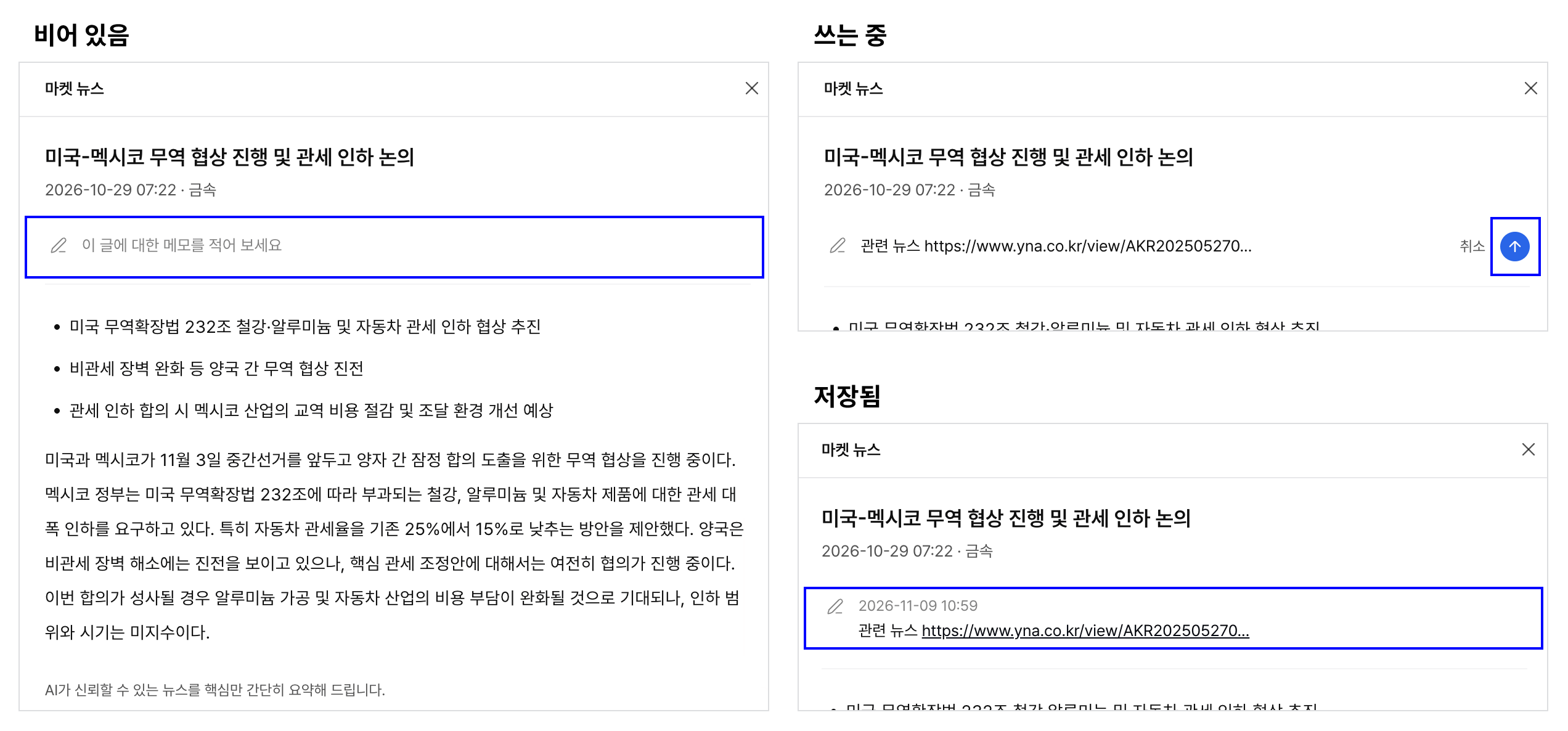
Note states: empty, editing, saved
1
Click the note area
Click “Enter a note.”
2
Enter and save
Enter your note and click the [↑] Save button. Notes aren’t saved automatically, so be sure to save. If you close the reader panel or open another post while writing, any unsaved content is lost.
3
Confirm it's saved
Once saved, “Note saved” appears, along with the date and time written and your note.
- You can leave one note per post, and only you can see it.
- You can write up to 1,000 characters and press Enter to start a new line.
- If you enter a web address (URL) in a note, it’s saved as a link. Click the link to go straight to that page.
2. Editing and deleting notes
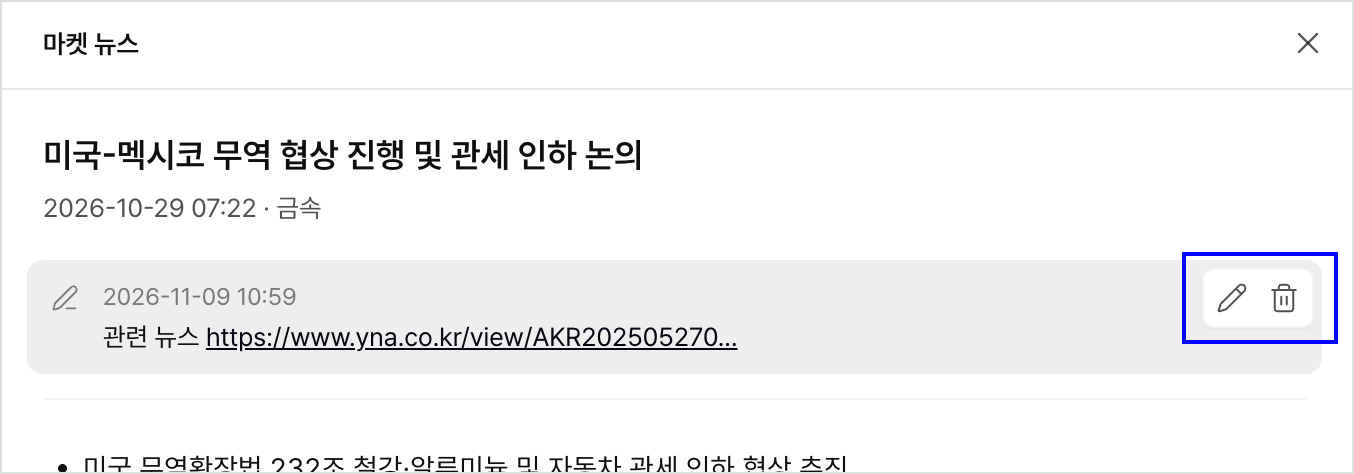
- Hover over a saved note to show the [✏️] Edit and [🗑️] Delete buttons.
- Edited notes show “Edited.”
- To add more content, edit the existing note.
3. Finding notes on the Notes screen
Click Notes at the top right of the screen to see all the notes you’ve left in one place.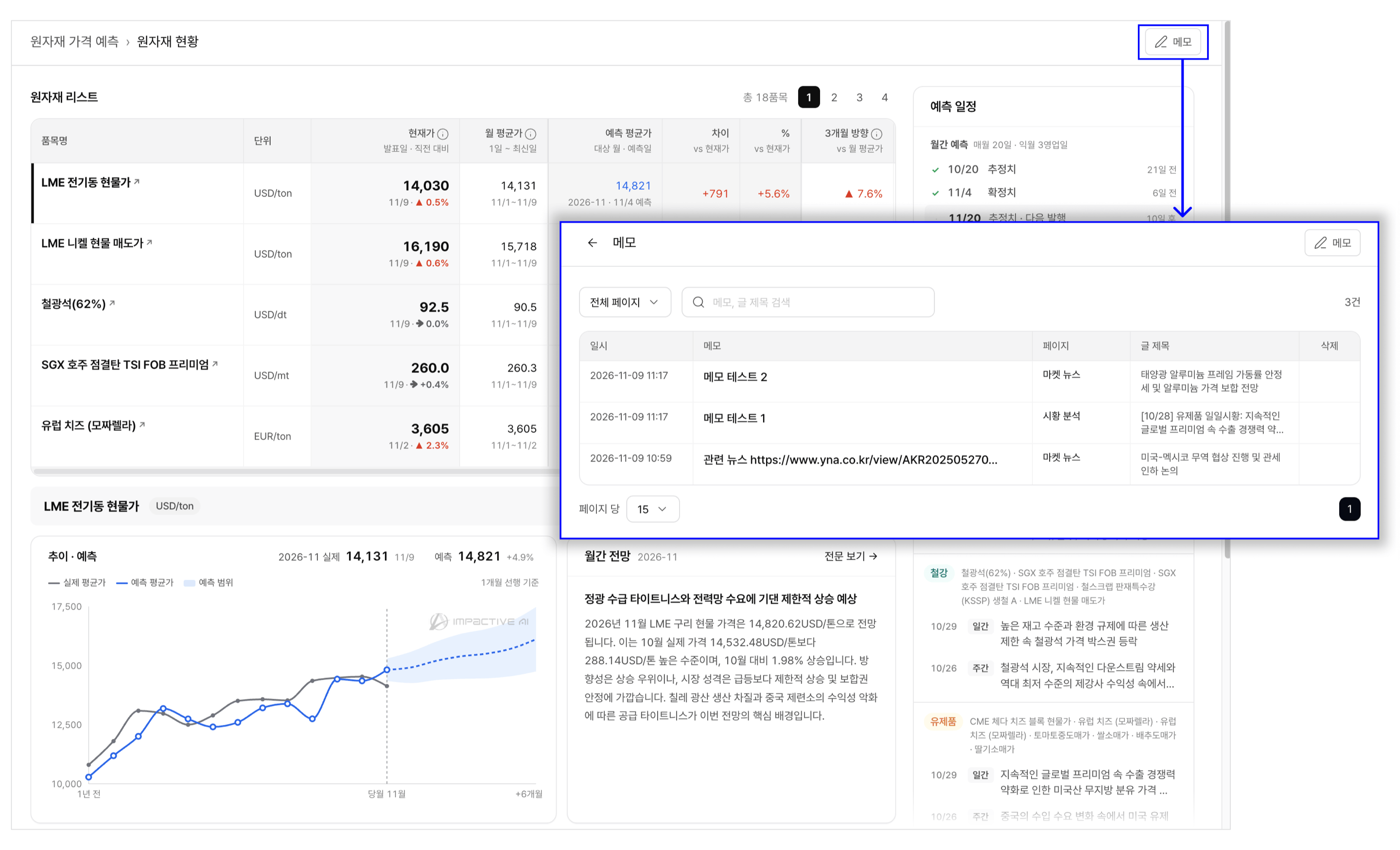
- At the top, you can select a location or search by note content or source title.
- Click a row to open the post in the reader panel on the right without leaving the screen.
- Hover over a row to show [Delete]. Deleted notes can’t be restored.
- Click ← at the top left to return to the screen you were on before opening the Notes screen.
4. FAQ
Do notes I leave in Commodity Price Forecast also appear in Market Intelligence?
Do notes I leave in Commodity Price Forecast also appear in Market Intelligence?
Yes. News and market overviews are available in both menus. Whichever menu you leave a note in, you can see it in both menus, and it’s also collected on the Notes screen.
Can I leave more than one note on a post?
Can I leave more than one note on a post?
You can leave only one note per post. To add more, hover over the existing note and click the [✏️] Edit button.
I wrote a note, but it's gone when I reopen the post.
I wrote a note, but it's gone when I reopen the post.
Notes aren’t saved automatically. If you close the reader panel or go to another screen before clicking the [↑] Save button, what you wrote is lost.