
Intended audience: commodity purchasing managers, sales and quoting staff, and corporate planning staff
Market Intelligence overview
What is Market Intelligence?
Deepflow’s Market Intelligence is a menu that brings commodity market information together in one place. While Commodity Price Forecast analyzes prices item by item in detail, Market Intelligence shows the flow of the market as a whole. Key benefits- Deepflow collects commodity news from Korea and around the world, and AI translates and summarizes it into English for quick, convenient reading.
- Catch the key issues through market overviews published every day and every week.
- See the articles cited in market overviews on major commodities and companies, and use them for further research.
- Check related market overviews and commodity price trends while you read the news.
Main workflow
- In Market News, find and read articles by period, category, and keyword.
- Use the market overviews and commodity price trends below each article to see how it relates to your items.
- In Market Overview, read daily and weekly overviews by overview category and check the supporting articles.
- For an in-depth look at market trends and outlooks, read the IM AI Brief reports Impactive AI publishes in IM AI Brief.
Screen layout
Market Intelligence has three tabs.
In Market News and Market Overview, click a title to open the reader panel on the right side of the screen. You can also check related information below the body text (see 2. News reader panel and 3-2. Overview reader panel).
If a sentence is hard to follow while you read, drag to select it and ask the AI Assistant about it right away. For details, see Commodity Price Forecast Agent.
You can leave personal notes on news, market overviews, and IM AI Brief reports. For details, see Notes.
1. Market News
A list of commodity news articles from Korea and around the world. News from highly reliable sources in each field is monitored around the clock and summarized to the key points.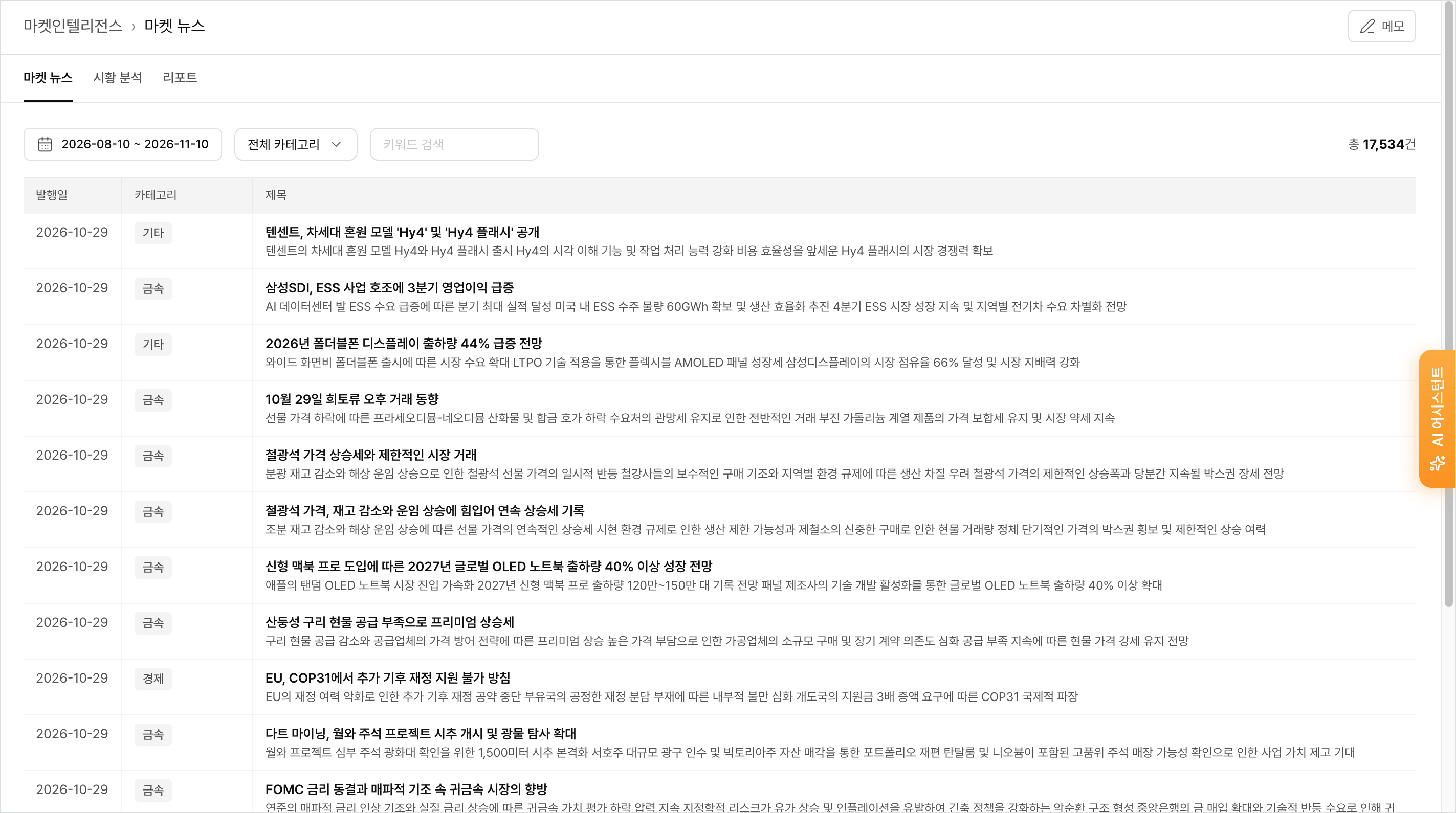
1-1. Screen layout
1-2. Finding articles
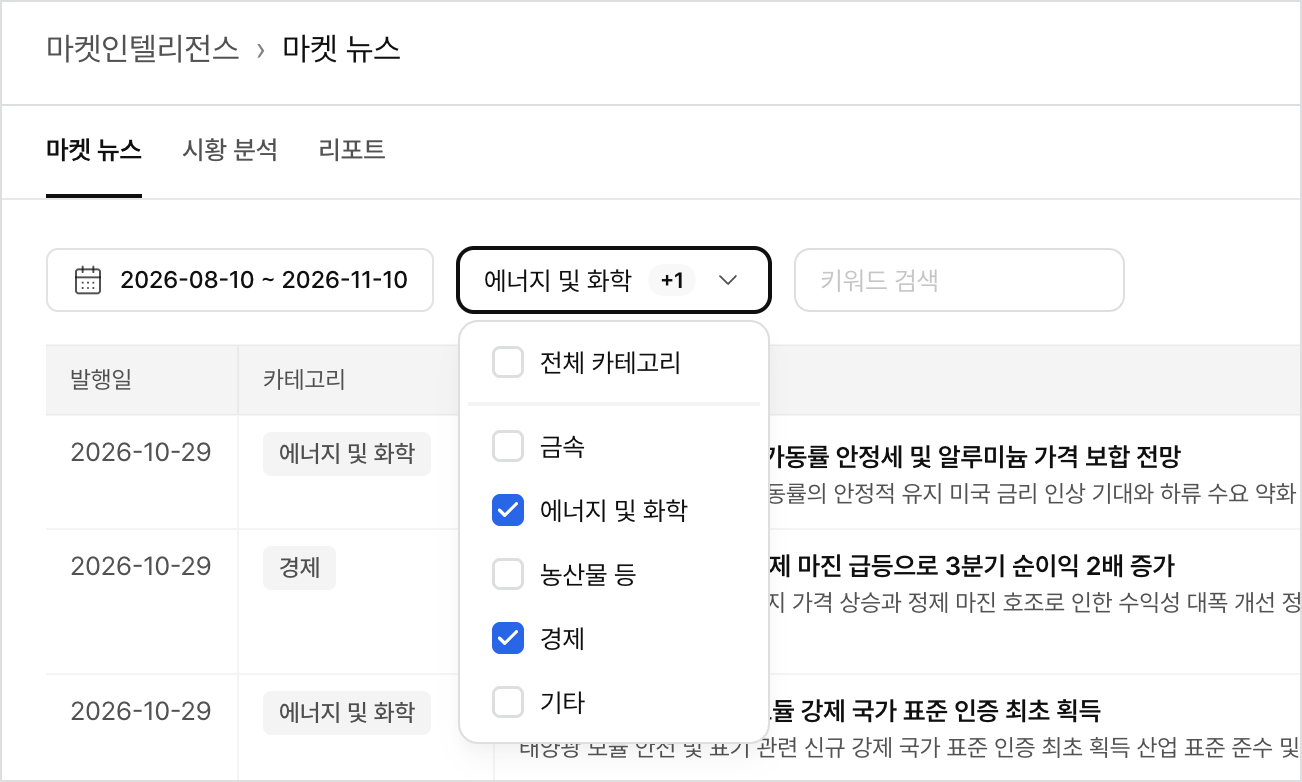
- All filter settings are applied together when searching for articles. When you change a condition, the list updates immediately and returns to page 1.
Searching with multiple words
When you enter several words in the keyword field, the search finds every article that contains at least one of them. For example, enteringcopper inventory finds articles that contain either copper or inventory.
- Your search term is split into separate words at spaces · commas (,) · slashes (/). For example, entering
LME coppersearches for LME and copper separately. - Results are sorted by how many of your words they contain. Ties are broken by the number of matching words in the title, then by most recent.
- The title, summary, and body are all searched. Matching words are highlighted in the list and the body.
1-3. Reading the article list
- Click a title to open the news reader panel on the right side of the screen.
- The article currently open in the reader panel is highlighted in the list.
- Below the list, you can choose how many articles to show per page (15 · 25 · 50).
2. News reader panel
The panel that opens on the right side of the screen when you click an article in Market News. Below the article, you can check related market overviews and commodity price trends, so you can see the market situation and commodity prices as you read.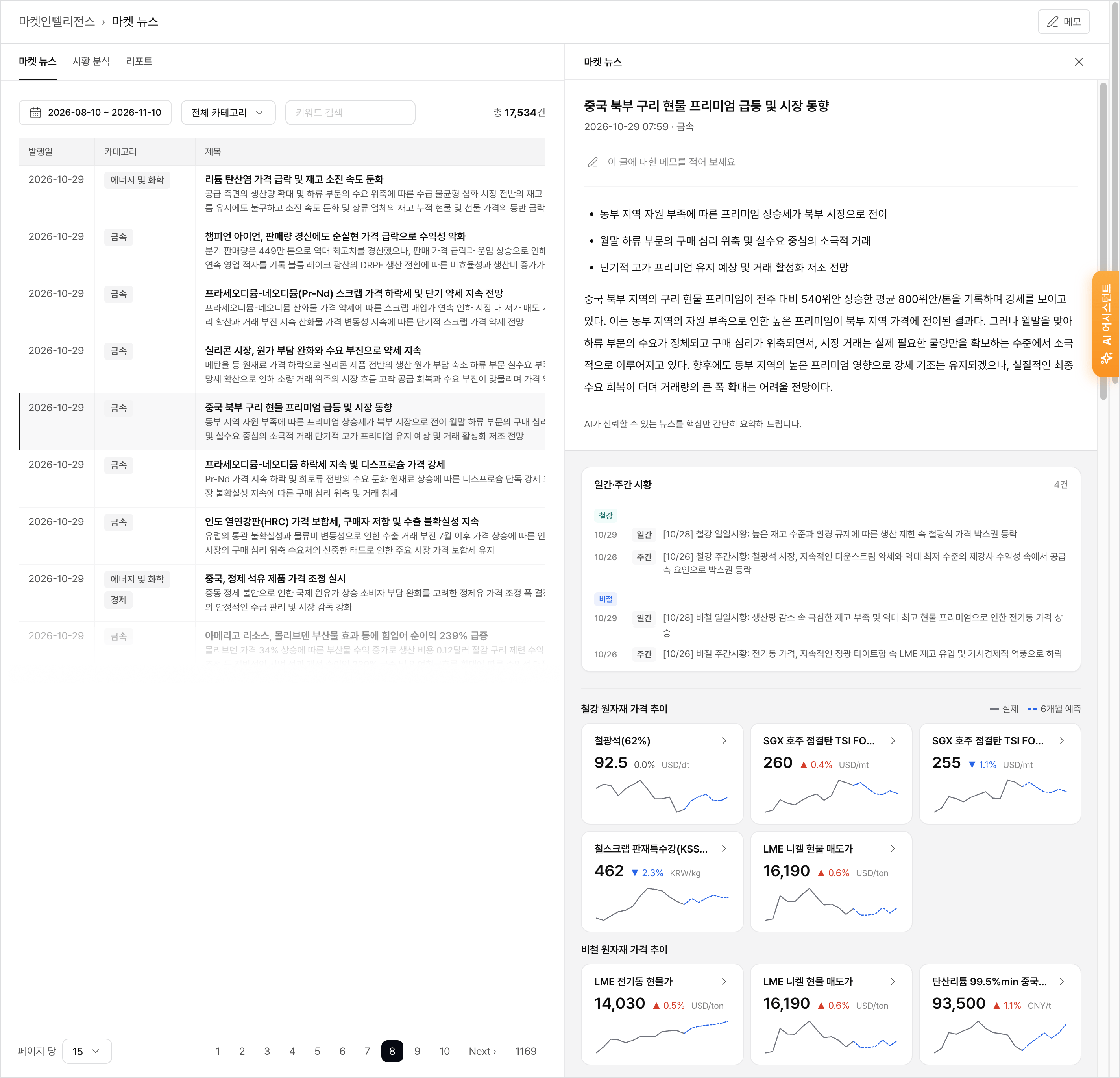
2-1. Reader panel layout
2-2. Using related information
Daily and weekly overviews

- Shows the latest daily and weekly overviews related to this article as of that time.
- Click an overview title to open the full text in the same panel.
Commodity price trends
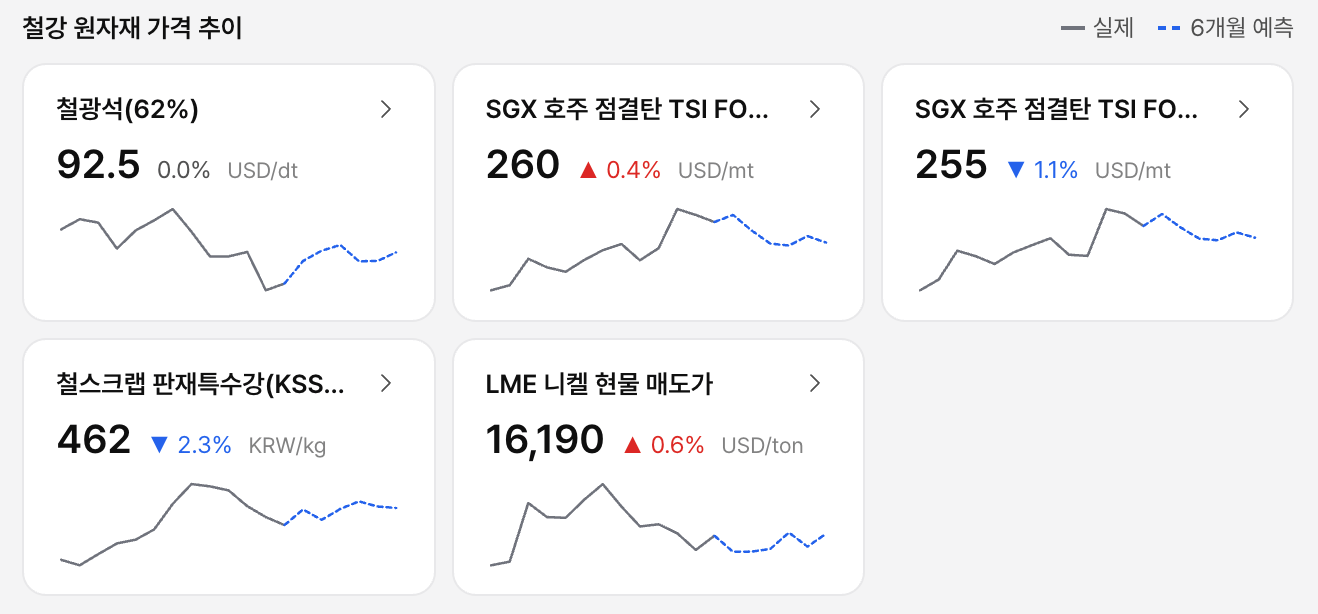
- Among the commodities related to this article, price cards for commodities you subscribe to appear at the bottom of the news.
- Each card shows the last price · change from the previous day · unit. The small chart plots actual prices over the past year and forecasts for the next 6 months.
- Click a card to go to that item’s Price Forecast tab in the Commodity Price Forecast menu.
- Articles with no related market overviews or commodities show only the body, without related information.
2-3. Using the reader panel
- When you click an overview in the related information, the panel stays put and only the body switches to the overview. The related information below stays based on the article you first opened.
- Click [← Back to article] in the header to return to the article you were reading.
- The reader panel closes automatically when you switch tabs or go to another screen.
- On a narrow screen, the reader panel opens over the list.
3. Market Overview
Daily and weekly overviews in which AI gathers and organizes collected news by overview category. A single post lets you grasp the market mood and the reasons behind price moves.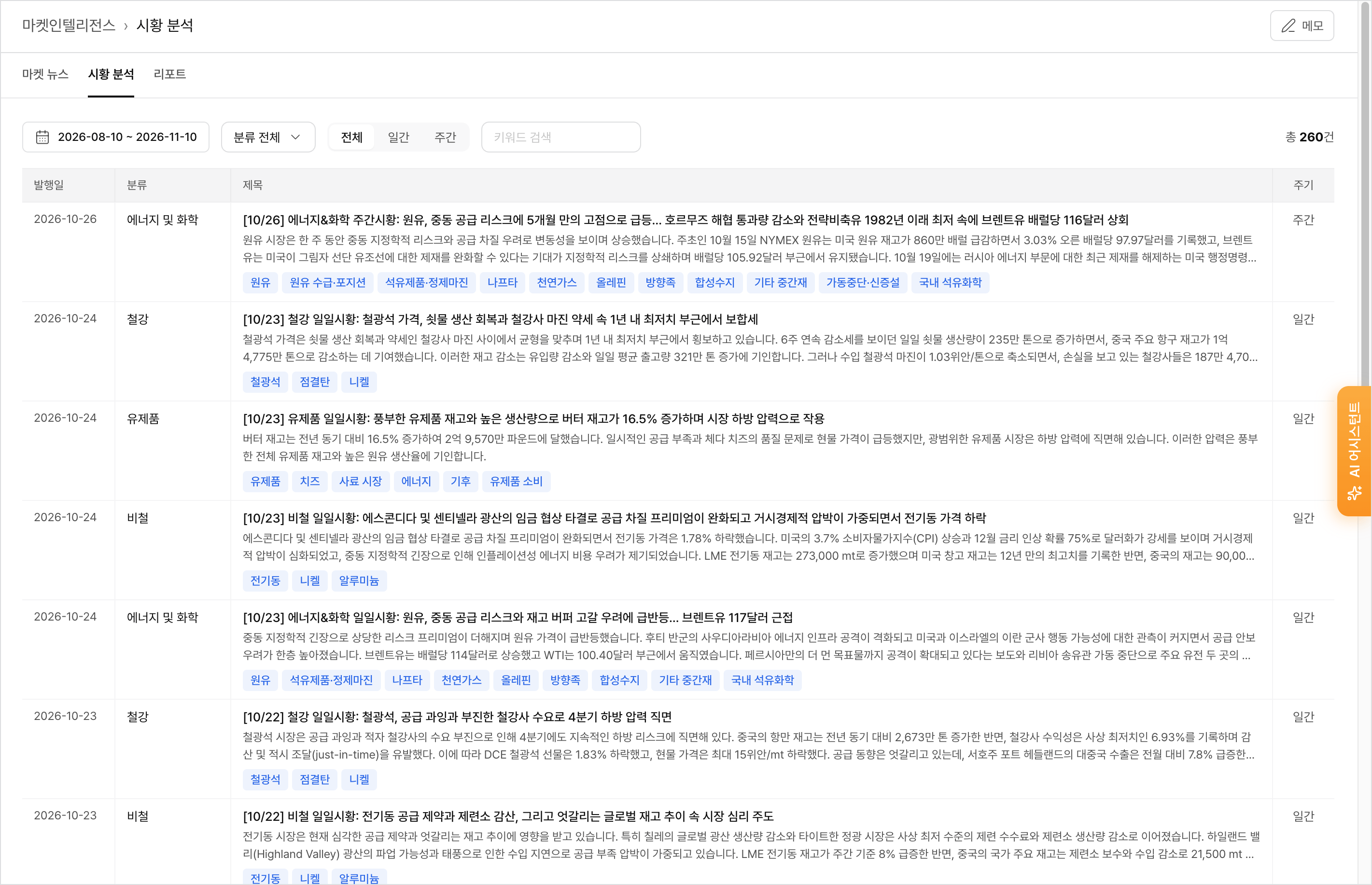
3-1. Finding market overviews
- Conditions are applied together. When you change a condition, the list updates immediately.
- Daily overviews are published every day, and weekly overviews every Monday.
- The default order is most recent first. When you enter a search term, posts that contain more of your words appear higher.
- Click a title to open the overview reader panel on the right side of the screen.
3-2. Overview reader panel
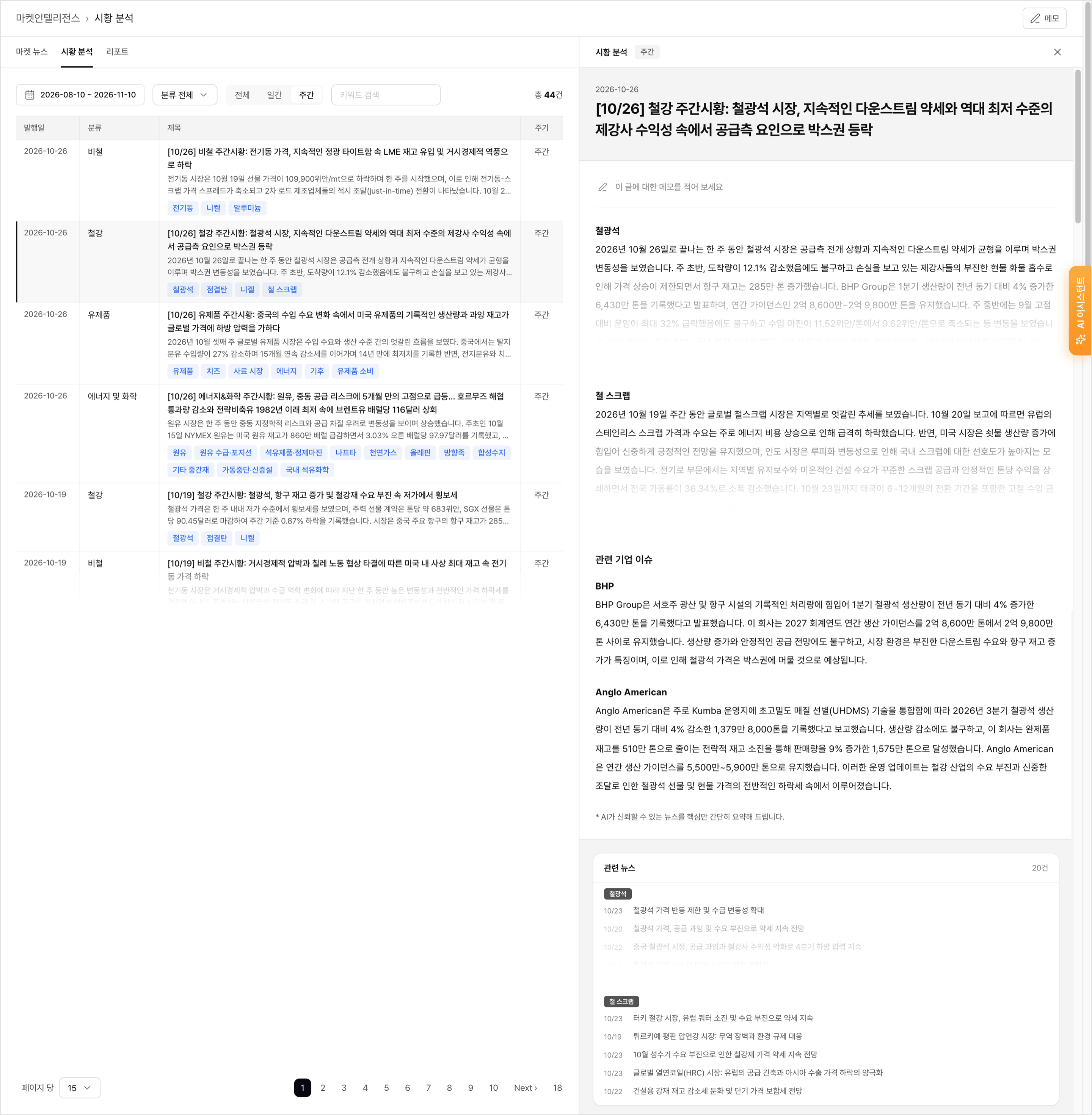
- The published date · title · summary are at the top, with the note area right below.
- The body is mostly organized into sections by commodity. For example, the non-ferrous overview consists of Copper · Nickel · Aluminum · related company issues sections.
Checking evidence in related articles
In related articles below the body, the key articles behind each section are grouped by commodity. You can see which articles the overview’s conclusions were drawn from.1
Select an article
Click an article title in related articles.
2
Read the article
The article body opens in the same panel. The related articles list stays visible.
3
Return to the overview
Click [← Back to overview] at the top to return to the overview you were reading.
- The overviews shown on the Commodities screen of the Commodity Price Forecast menu are the same as those shown on the Market Overview screen.
4. IM AI Brief
A tab that collects IM AI Brief reports, in-depth commodity analyses published by Impactive AI. Use it when you want an in-depth understanding of market trends and outlooks.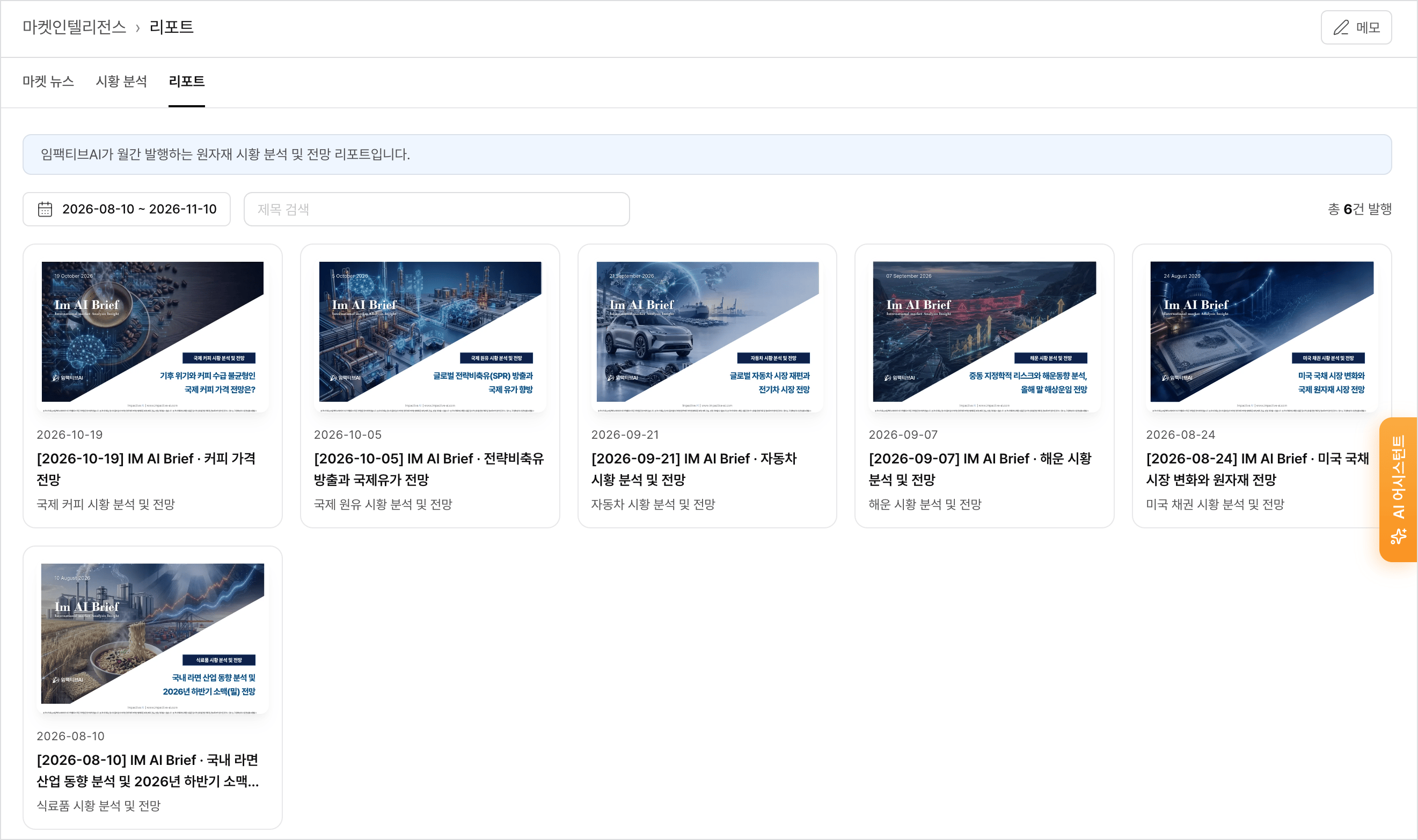
4-1. Finding reports
- Reports appear as cards, most recent first. Each card shows a cover · published date · title · subtitle.
- At the top, you can find reports by period and title search.
- Reports with a note show a note icon.
4-2. Reading reports
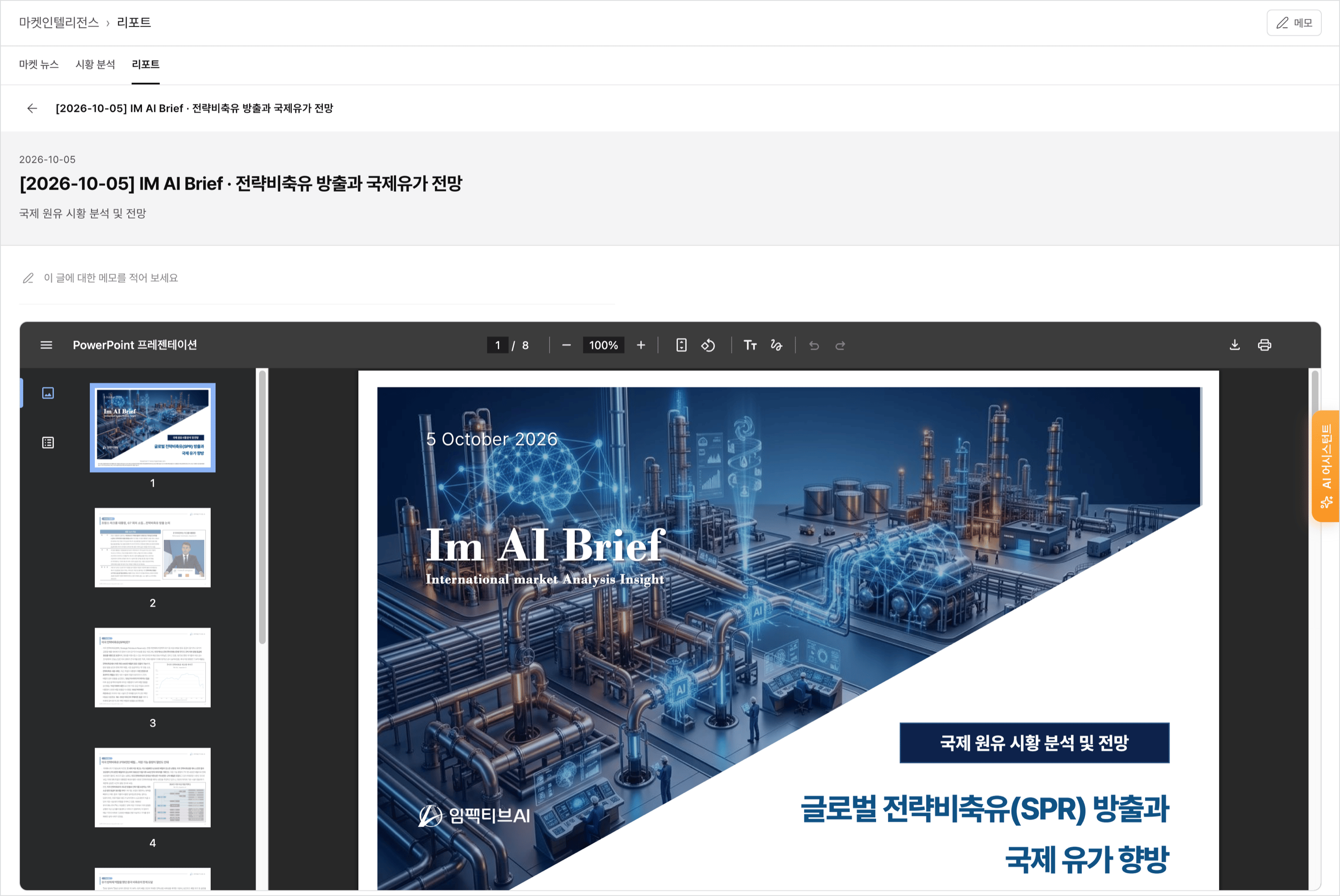
1
Open a report
Click a card to open the report in place of the list.
2
Use the toolbar
Use the toolbar at the top to move between pages, zoom in, zoom out, print, and download.
3
Leave a note
You can leave a note in the note area at the top of the report.
4
Return to the list
Click Back (←) to return to the list.
5. Glossary of key terms
6. FAQ
I entered several search terms, but articles with only one of the words also show up.
I entered several search terms, but articles with only one of the words also show up.
Market Intelligence search finds every post that contains at least one of the words you entered. Posts that contain more of your words appear higher, so start with the top results.
What's the difference between a category and an overview category?
What's the difference between a category and an overview category?
A category is the topic grouping of Market News articles (e.g., Metals · Energy and Chemicals), while an overview category is the unit by which market overviews are organized (e.g., Steel · Non-ferrous). They use different criteria, so they have different names.
I don't see commodity price trends below the news reader panel.
I don't see commodity price trends below the news reader panel.
Commodity price trends show only commodities you subscribe to. If none of the commodities related to the article are ones you subscribe to, no price trends appear.
I opened an older article and it shows an old market overview.
I opened an older article and it shows an old market overview.
The news reader panel shows the latest market overview as of when the article was published, so you can see the market situation at the time the article came out. Check the Market Overview tab for the latest overviews.