
Commodity Price Forecast Agent overview
- Click the AI Assistant on the right edge of the Commodity Price Forecast or Market Intelligence screen to start asking questions.
- No more jumping between screens to piece together prices, forecasts, news, and market overviews. One question gets you what you need, organized into tables and charts.
- It explains why a price moved, citing supporting news with links to the original articles, so you have the evidence for internal reports and purchasing decisions right away.
- New to the agent? Start with 6. Quick walkthrough.
What is the Commodity Price Forecast Agent?
The Commodity Price Forecast Agent is an AI assistant that saves time for people who need to monitor commodity prices and explain how they move. Until now, you had to check prices and forecasts, then find and read related news and market overviews, and summarize it all yourself. Now you just ask, the way you normally would. The AI Assistant gathers the scattered information into tables and charts and explains why prices moved, citing supporting news. You can quickly see what has changed and prepare the evidence you need for internal reports or purchasing decisions. If a sentence in a market overview is hard to follow, drag to select it and ask about it right away. The AI Assistant explains it in plain terms based on Deepflow’s news and market overviews. On screen it appears as the Commodity AI Assistant.When to use it
Main workflow
- Open the AI Assistant on the Commodity Price Forecast or Market Intelligence screen.
- Pick a suggested question, or ask your own by entering the item, period, and what you want to know. You can also drag to select a sentence while reading and ask about it right away.
- Check the tables and charts in the answer, along with the publication dates and original links of the supporting news.
- Narrow down causes with follow-up questions, or ask for the same content in a different format (table, chart, or summary).
- Save the items you watch often and how you like answers written in User Context under settings. It applies from your next chat.
Screen layout
1. Getting started
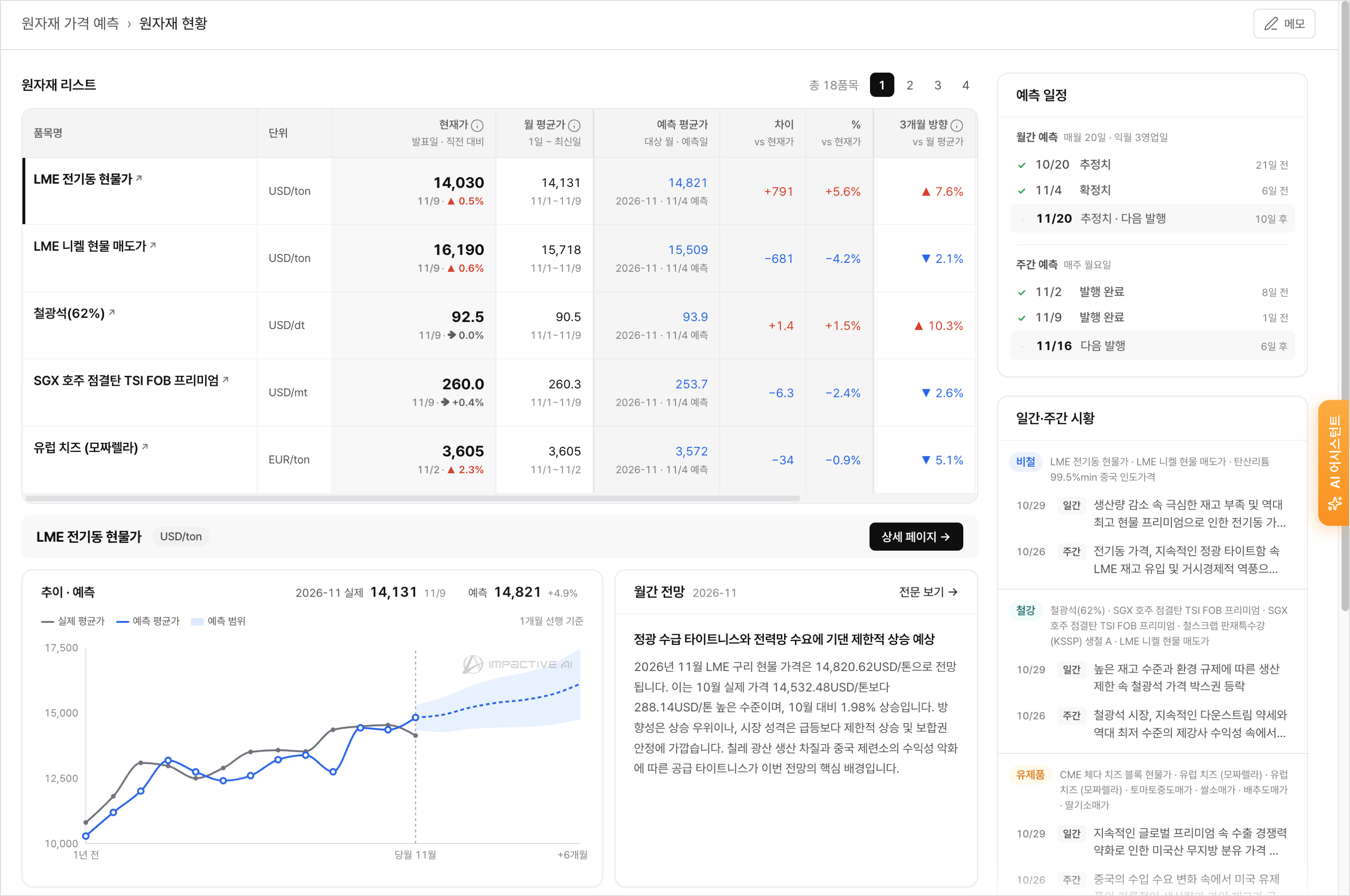
Commodity Price Forecast screen — the AI Assistant tab on the right edge
1-1. Opening the agent
Go to a commodity screen
Open the AI Assistant
Ask a question
1-2. Window modes
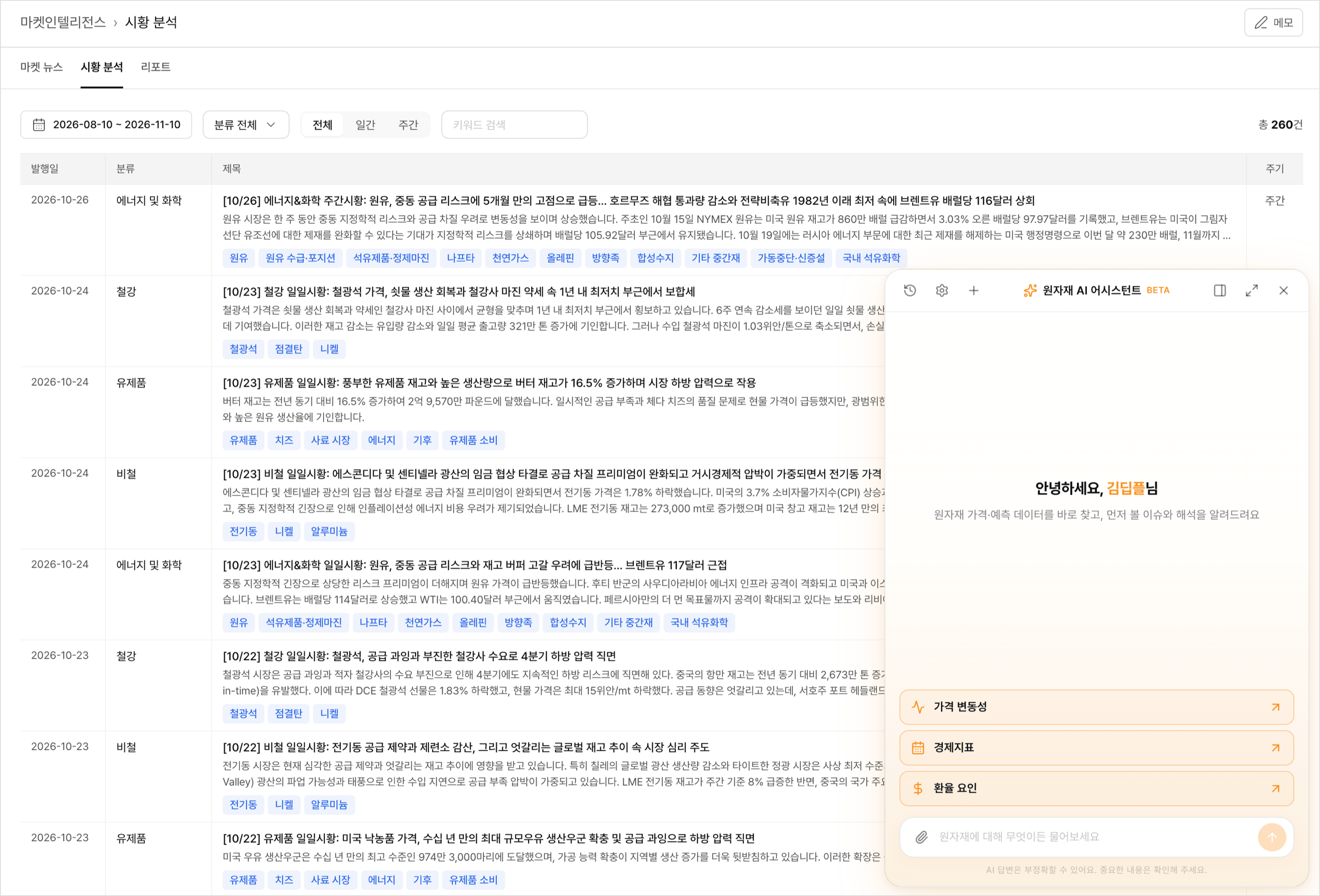
Small window — start screen and suggested questions
1-3. Sending and stopping questions
- Press Enter to send and Shift+Enter for a new line.
- While an answer is being generated, the send button changes to [Stop].
- Click [Stop] to stop answer generation.
2. Asking questions
2-1. Suggested questions
When you first open the AI Assistant, the suggested questions below appear. Click one to send it right away.2-2. Asking your own questions
Include item + period (target month) + what you want to know + output format to get an accurate answer. Enter items by the name shown on screen (for example, LME copper spot price).2-3. Asking from the screen you’re viewing
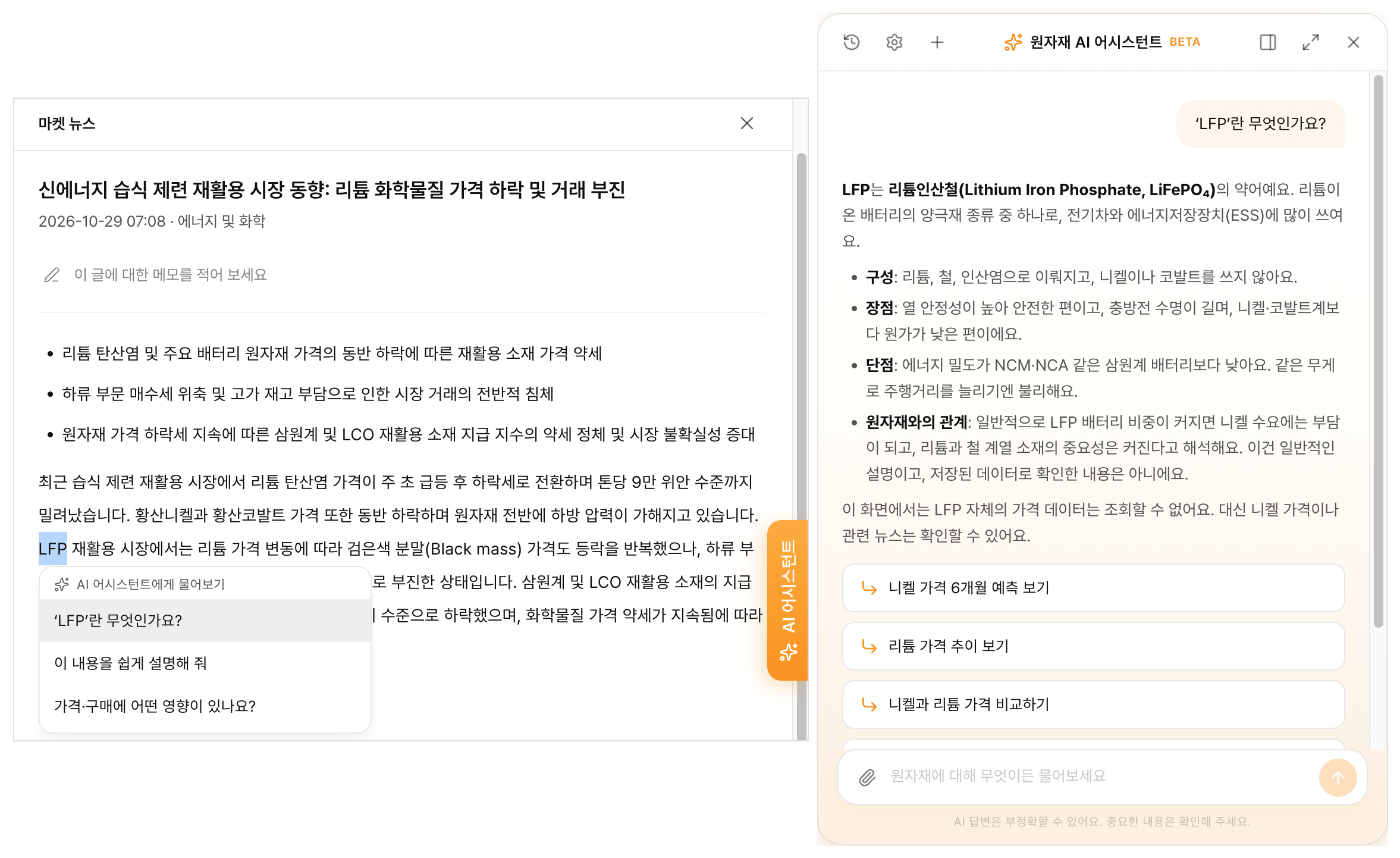
Drag to select text → open the AI Assistant
- When you send a question, the item or article you’re currently viewing is taken into account. On the Item detail screen, you can ask about “this item.”
- To ask about a different item, enter its name in your question.
- While reading a market overview, news article, or Monthly Outlook, drag to select a sentence that’s hard to understand and a question menu appears. Choose a question to open the AI Assistant and send it right away.
- When you reopen an earlier chat, the answers from that time are shown. To check against current data, ask again.
3. Reviewing answers
3-1. Tool run status
- While an answer is being generated, progress such as “Thinking,” the name of the query tool, and “Organizing results” is shown.
- Expand a tool that ran to see which conditions it used and what it found.
- A query marked with an error didn’t complete. Please ask again.
3-2. Checking sources
- Answers based on news or market overviews show the publication date and a link to the original article.
- You can see for yourself where an answer came from and use it in internal reports.
- Before copying anything into a report, open the original link and check the content and publication date. If the source is old, ask again based on recent news.
3-3. Tables, charts, and Excel download
- Click a column header to sort the table.
- Click [Download Excel] to get the table as a CSV file. Use it after the table has finished generating.
- The download covers the rows shown in the table in the answer. If the table doesn’t include everything you need, ask again with the range specified.
- Depending on the query results, charts show actual prices and forecasts together. To see them at once, ask to “show it in one chart.”
3-4. Follow-up questions and copy
- Click a follow-up question under the answer to continue in the same chat.
- Use the copy icon to copy the answer.
3-5. Reading the numbers
4. Chat history, settings, and image attachments
4-1. Chat history
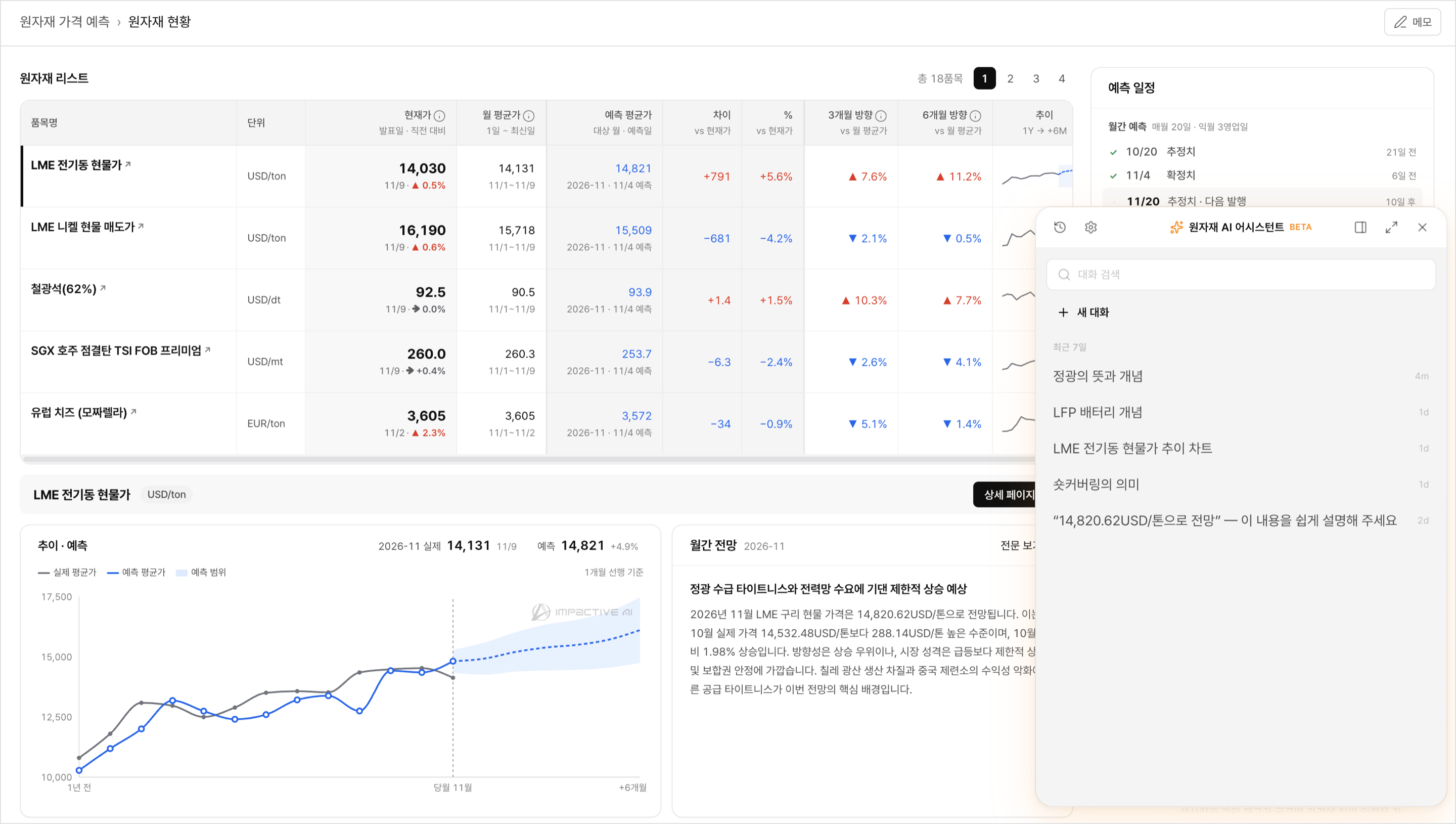
Chat history — search, new chat, recent chats
- Click the Chat history icon in the top bar to see your chats, most recently updated first. You can search by title.
- Click [New chat] to start a new question.
- Chat history for the Commodity AI Assistant and the Demand Forecast AI Assistant is stored separately.
- Clicking the delete icon shows a confirmation dialog. Deleted chats can’t be reopened, so copy what you need or download tables first.
- In long chats, conditions you entered earlier may not be applied. Re-enter important items, periods, and conditions.
4-2. User Context
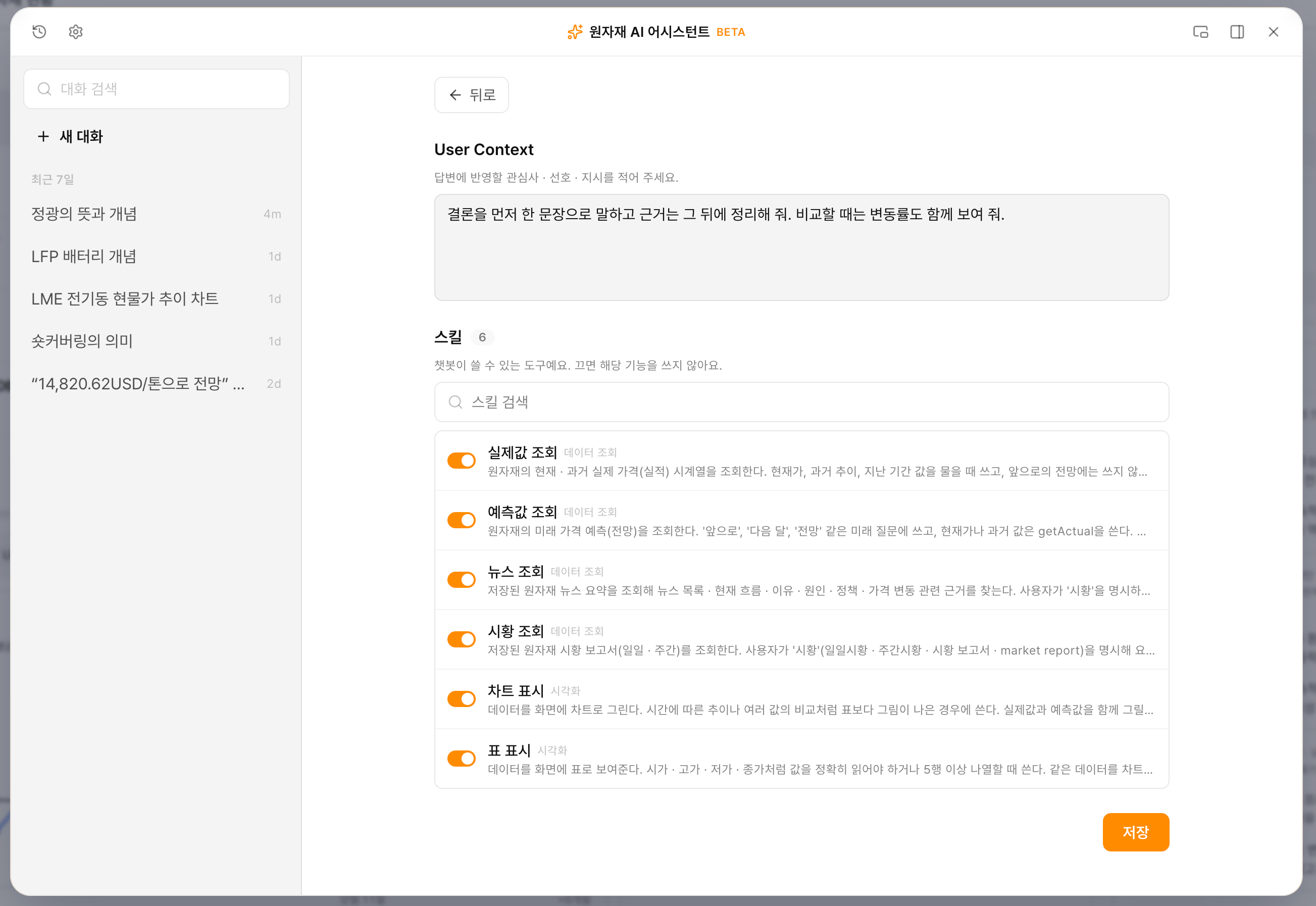
Settings — User Context and skill list
Open settings
Enter information about you
Save
4-3. Turning skills on and off
- Find a skill with Search skills in settings and use its switch to turn it on or off. The AI Assistant doesn’t use skills that are off.
- Skill switches save immediately, separately from the User Context [Save] button.
- If a query doesn’t work or no table or chart appears, check that the relevant skill is on.
4-4. Attaching images
Open attach
Add images
Check and send
- You can attach up to 3 images at a time, up to 4MB per file.
- When sending a screenshot, include what you want checked in your question.
- PDF, document, CSV, and Excel files can’t be attached.
5. FAQ
I can't see the AI Assistant.
I can't see the AI Assistant.
The numbers in the answer don't match the screen.
The numbers in the answer don't match the screen.
It answers about a different item.
It answers about a different item.
It doesn't answer when I ask about forecasts.
It doesn't answer when I ask about forecasts.
It can't answer questions about external variable indicators.
It can't answer questions about external variable indicators.
My chats from the demand forecast screen are missing.
My chats from the demand forecast screen are missing.
The response cut off or an error occurred.
The response cut off or an error occurred.
6. Quick walkthrough
Check price volatility
Narrow it down
View prices and forecasts together
Ask about an overview sentence
Check the evidence