[1] Viewing and editing your profile
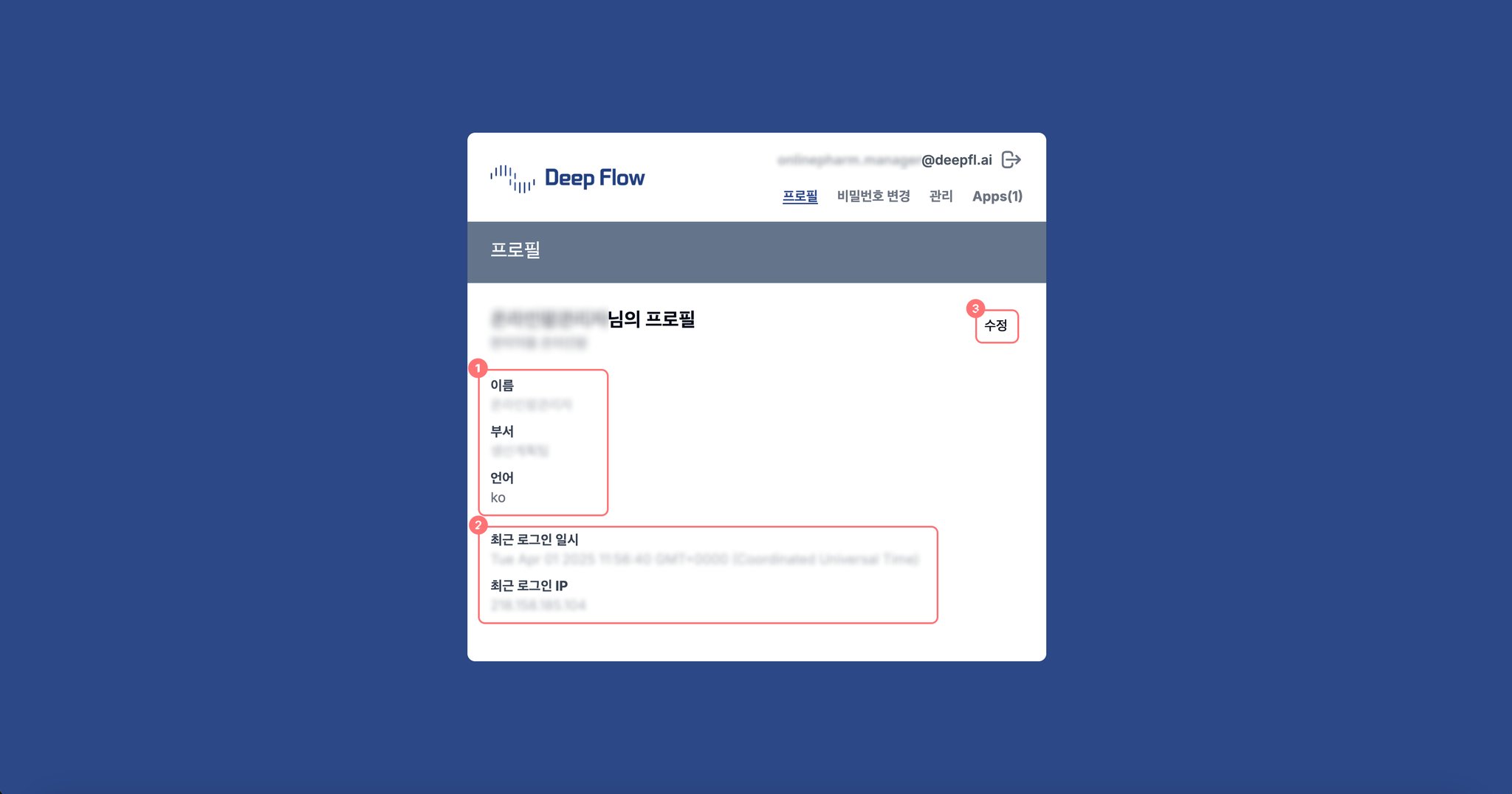
1
Review basic information
See the details you entered during email verification.
2
Review recent sign-in info
Check when and where you last signed in.
3
Edit profile
Click Edit to update your information. You can edit name, department, and language. Language can be Korean or English.
[2] Changing your password
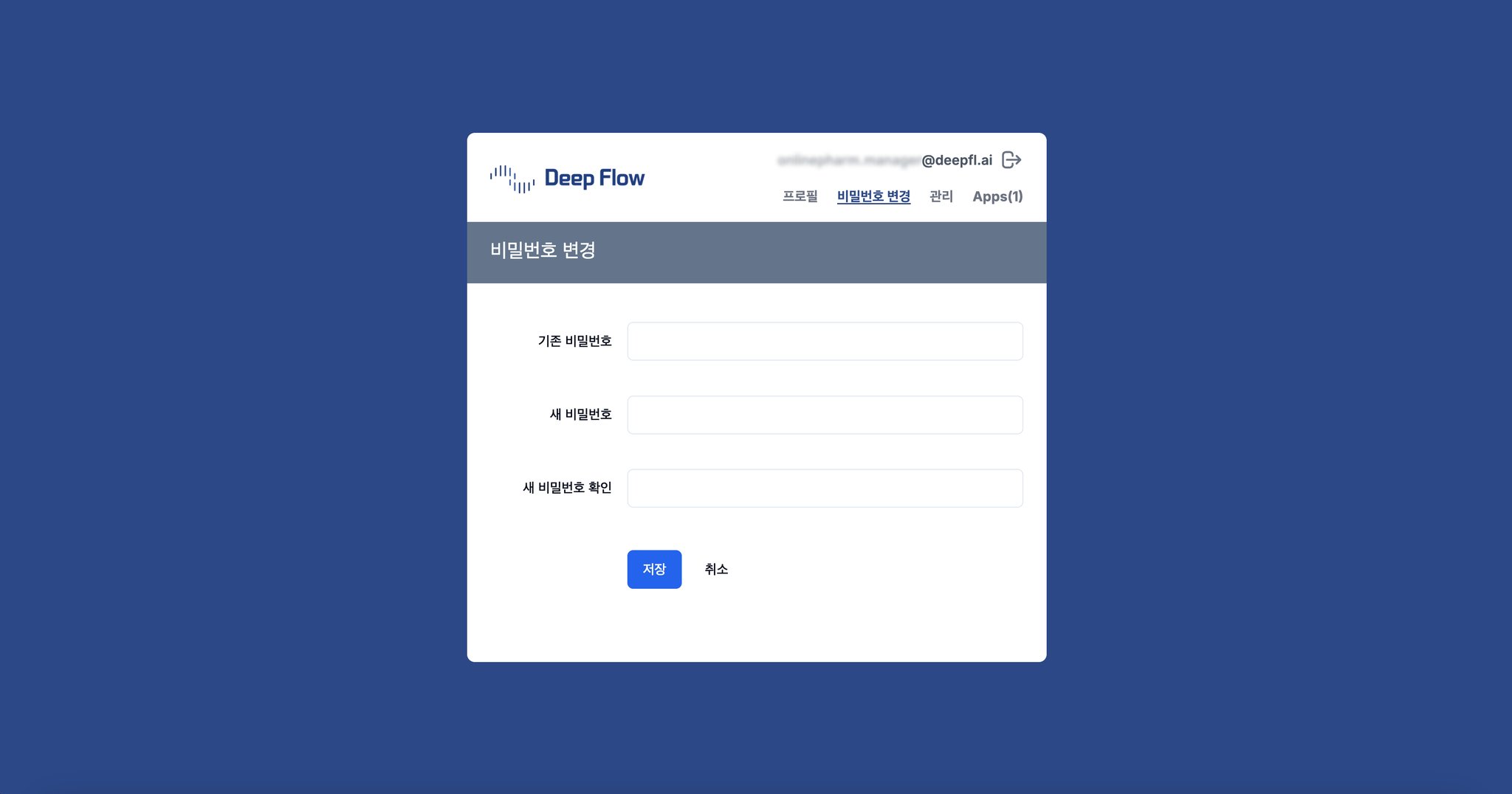
1
Verify with your current password
Enter your existing password to authenticate.
2
Save the new password
Enter the new password and click Save to complete the change.
[3] Managing users
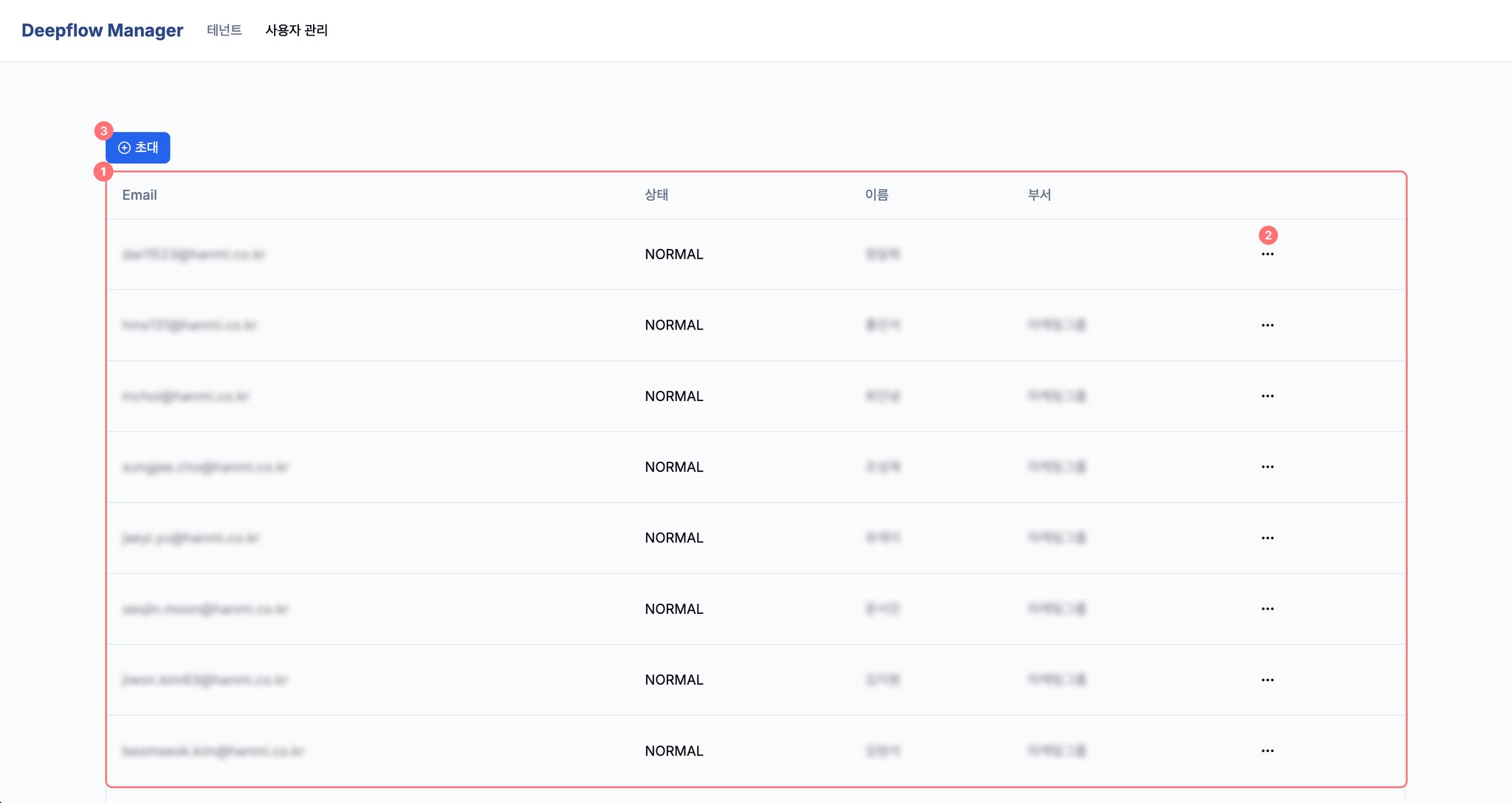
1
View the user list
See all users currently registered to your workspace.
2
Manage existing users
Use the More menu on each user to manage them. Registered users can be removed here.
3
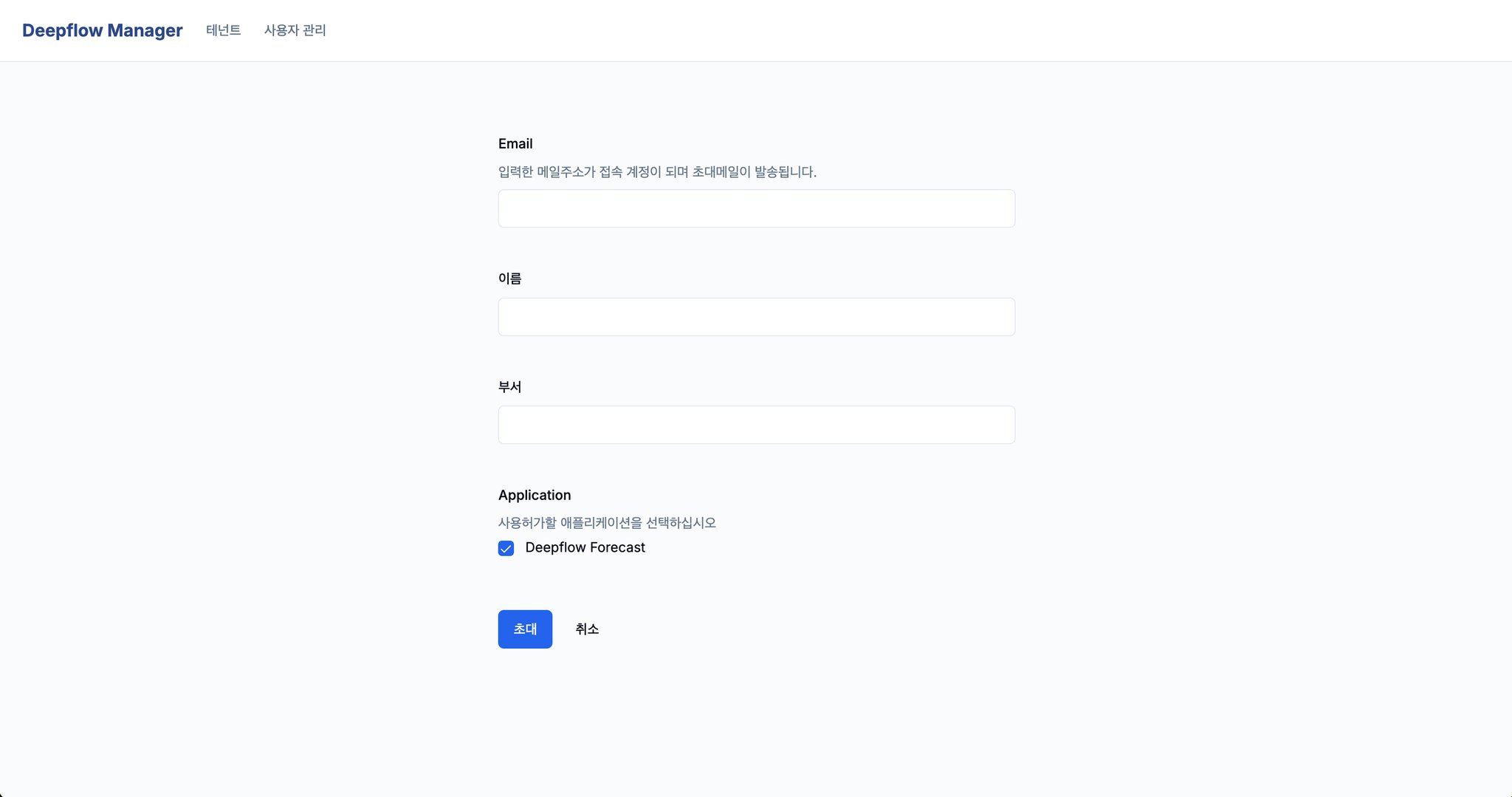
Invite a new user
Click Invite to add a user.
- Fill in the email, name, and department.
- Pick the applications the invitee will be able to use (multiple selections allowed).
- Click Invite. An invitation link is emailed to the user, and they can use the service after verifying their email.
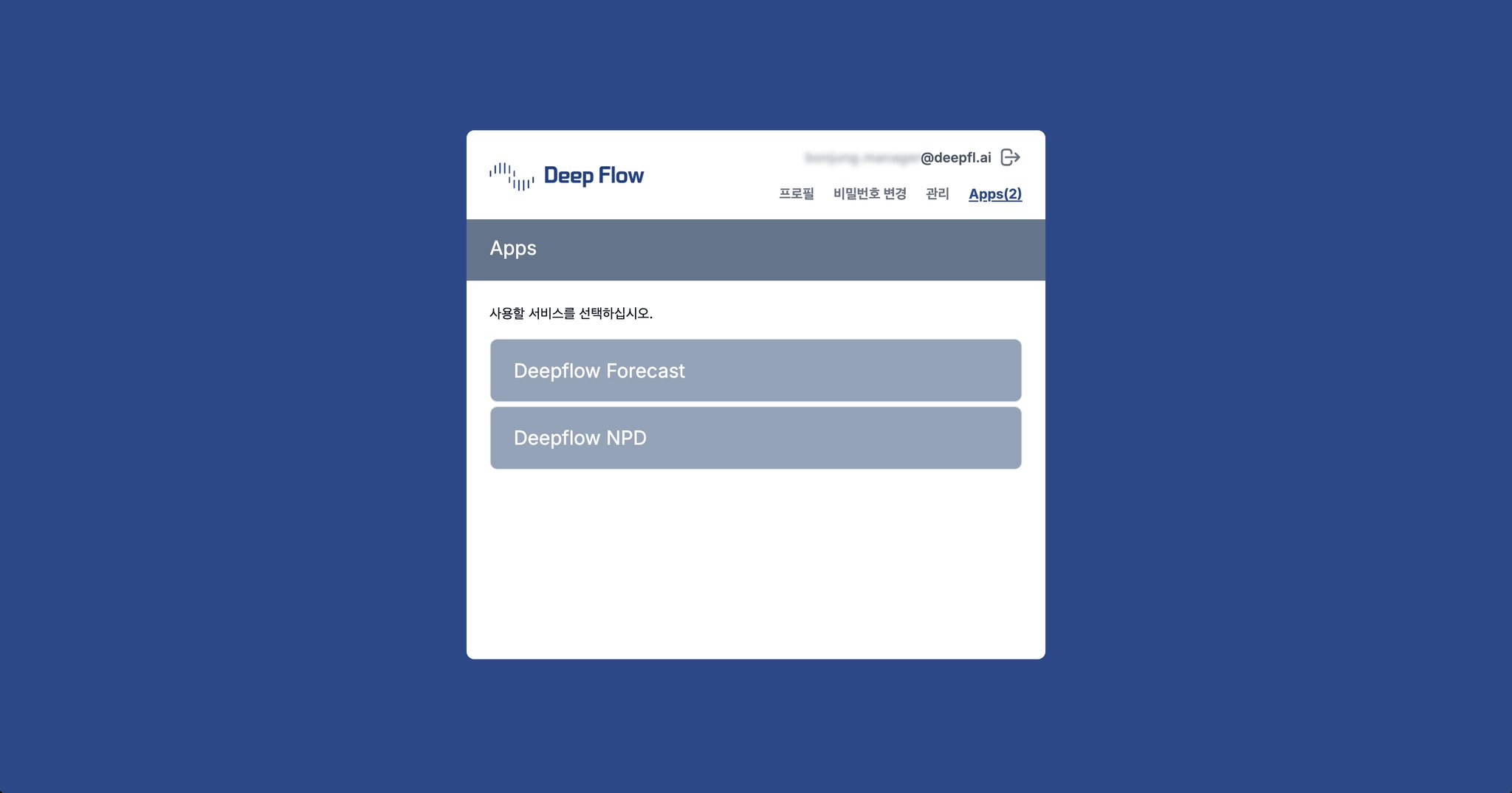
[4] Apps